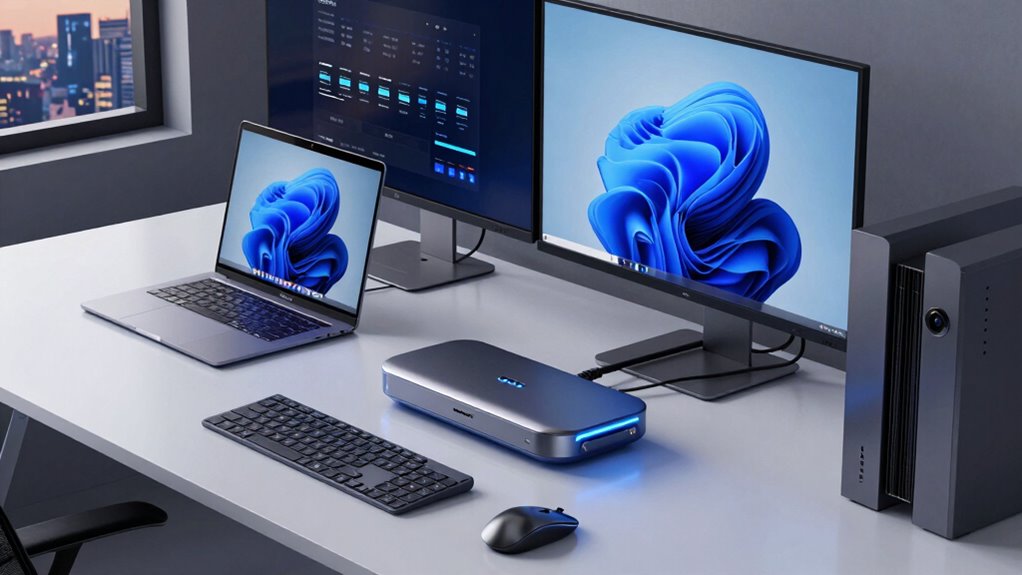

For a docking station that works with both Mac and Windows laptops, I’d start with the Anker Nano 13-in-1 for its detachable hub design and broad port selection. The Acer 9-in-1 is a simpler fit for everyday desk setups, while the Plugable USB-C Triple Display Dock suits buyers who need several screens and 100W charging. The main tradeoffs are monitor compatibility, whether a dock needs DisplayLink software, and how much power it can deliver to your laptop. Mac and Windows systems can handle external displays differently, so matching the dock to your exact computer matters. Read on for my full breakdown of where each option fits and what to check before choosing.

Get the latest gadgets delivered free with Prime
- Fast, free delivery on millions of items
- Prime Video, Amazon Music and more included
- Member-only deals all year
Complete the kit



Key Takeaways
- The Anker Nano 13-in-1 stands out as the most flexible lead pick because its detachable 6-in-1 hub can serve as a separate travel accessory as well as part of a desk setup.
- DisplayLink separates multi-monitor choices from simpler docks: the TobenONE three-monitor model and Plugable triple-display model target setups where native USB-C display support may fall short, with software compatibility to factor in.
- MacBook-specific designs need extra scrutiny: the PULWTOP 10-in-2 and TobenONE 16-in-2 are shaped around MacBook connections, so confirm your laptop generation and port layout before choosing one for mixed Mac and PC use.
- More ports do not automatically mean broader compatibility: USB-C, USB 3.0, DisplayPort, HDMI, and DisplayLink docks use different connection paths that can change display support across operating systems.
- Charging capacity and display support are separate decisions: models advertising 100W or 120W power can reduce cable clutter, but buyers should still verify host charging limits and the dock’s screen behavior on their specific laptop.
| Anker Nano Laptop Docking Station, 13-in-1 Dock with Detachable 6-in-1 USB-C Hub |  | Best Overall for Desk and Travel | Ports: 13 total, including USB-C, USB-A, HDMI, DisplayPort, Gigabit Ethernet, audio, and SD/TF card slots | Detachable hub: 6-in-1 USB-C hub | Display support: Up to 4K at 60Hz single; dual 2K at 60Hz; or triple 1080p at 60Hz | VIEW ON AMAZON | See Our Full Breakdown |
| LIONWEI 13-in-1 USB-C Docking Station with Dual 4K HDMI |  | Best Lightweight Value for Mixed Setups | Total ports: 13 | Video outputs: 2 HDMI and 1 DisplayPort | Maximum resolution: Up to 4K at 60Hz | VIEW ON AMAZON | See Our Full Breakdown |
| Plugable Dual DisplayPort and HDMI Docking Station with USB 3.0 and USB-C |  | Best for Existing Chargers and Peripheral-Heavy Desks | Display outputs: Dual HDMI and DisplayPort | Maximum display support: Two 4K monitors at 3840 × 2160 and 60Hz | USB ports: Six USB 3.0 | VIEW ON AMAZON | See Our Full Breakdown |
| Anker Nano 8-in-1 USB-C Hub with Dual 4K HDMI |  | Best Compact Hub for Windows Laptops | Ports: 8 | HDMI: 2 ports, up to 4K at 60Hz | USB data: Up to 10Gbps | VIEW ON AMAZON | See Our Full Breakdown |
| TobenONE DisplayLink Docking Station for Three Monitors with 120W Power Adapter |  | Best for Extended Multi-Monitor Mac and Windows Setups | Ports: 18 | Display outputs: 3 HDMI and 3 DisplayPort | Maximum displays: Up to 4 on compatible Windows laptops; up to 3 on macOS | VIEW ON AMAZON | See Our Full Breakdown |
| Anker 8-in-1 USB-C Laptop Docking Station with Dual HDMI |  | Best for Everyday Windows Setups | Ports: 2 HDMI, 2 USB-A data, Ethernet, SD, microSD, USB-C PD-IN | Single-display support: Up to 4K at 60Hz | Dual-display support: Up to 4K at 30Hz | VIEW ON AMAZON | See Our Full Breakdown |
| Wozoyo 11-in-1 USB-C Docking Station with 100W PD, Dual 4K HDMI, DisplayPort, and Gigabit Ethernet |  | Best for Windows Multi-Monitor Work | Ports: 2 USB-A 5Gbps, 2 HDMI, DisplayPort, Gigabit Ethernet, SD/TF readers, AUX, USB-C PD | Display outputs: 2 HDMI and 1 DisplayPort; triple 4K output listed | HDMI support: Up to 4K at 60Hz | VIEW ON AMAZON | See Our Full Breakdown |
| Anker Prime 14-in-1 Laptop Docking Station with Dual HDMI Displays |  | Best for High-Port-Count Desks | Connectivity: 14-in-1 | Charging output: 160W total; USB-C ports support up to 100W each | USB-C ports: 3 | VIEW ON AMAZON | See Our Full Breakdown |
| Plugable USB 3.0 Universal Laptop Docking Station with Dual HDMI |  | Best for Older Productivity Setups | Connection: Hybrid USB 3.0 and USB-C cable | Video outputs: 2 HDMI | Dual-display resolution: Up to 1920×1200 at 60Hz | VIEW ON AMAZON | See Our Full Breakdown |
| PULWTOP 10-in-2 MacBook Docking Station with Dual 4K HDMI |  | Best MacBook Pick | Ports: 2 HDMI, 2 USB-C 10Gbps, 1 USB-A 10Gbps, 1 USB-A 2.0, SD, TF, RJ45 Ethernet, USB-C PD | Display support: Up to 2 × 4K at 60Hz | Power input: 100W PD | VIEW ON AMAZON | See Our Full Breakdown |
| MOKiN 14-in-1 USB-C Laptop Docking Station with HDMI and DisplayPort |  | Best Port Variety for Windows and Mac | Ports: 14 | Video outputs: 2 HDMI and 2 DisplayPort | USB ports: 2 USB-C 3.0, 1 USB-A 3.0, 2 USB-A 2.0 | VIEW ON AMAZON | See Our Full Breakdown |
| TobenONE 16-in-2 MacBook Docking Station with Dual 4K@60Hz HDMI, 7 USB Ports, and 100W PD Charging |  | Best MacBook-Only Pick | Compatibility: MacBook Pro and Air (2016–2026); not compatible with Windows or ChromeOS | Display support: Dual 4K at 60Hz; base M1, M2, and M3 support one external display | USB ports: 4 USB 3.0 (5Gbps), 2 USB 2.0, 1 USB-C data (5Gbps) | VIEW ON AMAZON | See Our Full Breakdown |
| Acer 9-in-1 USB-C Docking Station with Dual 4K@60Hz HDMI, 100W PD Charging, and SD Card Reader |  | Best Compact Cross-Platform Pick | Ports: 9 | Video: 2 HDMI, up to 4K at 60Hz | USB: 3 USB-A and 1 USB-C, up to 5Gbps | VIEW ON AMAZON | See Our Full Breakdown |
| Plugable USB-C Triple Display Docking Station with 100W Power Delivery |  | Best for Three-Screen Setups | Display outputs: 3 HDMI; up to 1× 4K at 30Hz and 2× 1080p at 60Hz | USB ports: 6 USB 3.0 | Power Delivery: 100W | VIEW ON AMAZON | See Our Full Breakdown |
| docking station for mac and window | Compatibility | Ports |
|---|---|---|
| Anker Nano Laptop Docking Stat | USB-C Windows laptops; macOS multiple displays mirror | 13 total, including USB-C, USB-A, HDMI, DisplayPort, Gigabit Ethernet, audio, and SD/TF card slots |
| LIONWEI 13-in-1 USB-C Docking | — | — |
| Plugable Dual DisplayPort and | Windows 7/8.x/10/11, macOS 10.14+ with driver, and ChromeOS 100+ | — |
| Anker Nano 8-in-1 USB-C Hub wi | Windows 10/11, ChromeOS, and compatible USB-C, USB4, or Thunderbolt devices; Linux unsupported | 8 |
| TobenONE DisplayLink Docking S | Thunderbolt 3/4/5, USB4, full-featured USB-C, macOS 11+, Windows 10+, ChromeOS 100+, and Android; Linux/Unix unsupported | 18 |
| Anker 8-in-1 USB-C Laptop Dock | — | 2 HDMI, 2 USB-A data, Ethernet, SD, microSD, USB-C PD-IN |
| Wozoyo 11-in-1 USB-C Docking S | macOS, Windows, Android, iOS | 2 USB-A 5Gbps, 2 HDMI, DisplayPort, Gigabit Ethernet, SD/TF readers, AUX, USB-C PD |
| Anker Prime 14-in-1 Laptop Doc | USB-C, USB4, Thunderbolt; Windows 10/11 and ChromeOS | — |
| Plugable USB 3.0 Universal Lap | Windows 10/11, macOS 14 or later, ChromeOS 100 or later | — |
| PULWTOP 10-in-2 MacBook Dockin | — | 2 HDMI, 2 USB-C 10Gbps, 1 USB-A 10Gbps, 1 USB-A 2.0, SD, TF, RJ45 Ethernet, USB-C PD |
| MOKiN 14-in-1 USB-C Laptop Doc | Thunderbolt 3/4 or full-function USB-C laptops; Windows and macOS | 14 |
| TobenONE 16-in-2 MacBook Docki | MacBook Pro and Air (2016–2026); not compatible with Windows or ChromeOS | — |
| Acer 9-in-1 USB-C Docking Stat | Windows and macOS; USB-C port must support DisplayPort Alt Mode and Power Delivery | 9 |
| Plugable USB-C Triple Display | — | — |
More Details on Our Top Picks
Anker Nano Laptop Docking Station, 13-in-1 Dock with Detachable 6-in-1 USB-C Hub
The detachable 6-in-1 hub gives this Anker a flexibility the fixed LIONWEI 13-in-1 dock lacks: keep the full dock at your desk, then take the smaller hub along for travel. Its 100W laptop charging, Ethernet, card slots, and range of video and USB connections make it a strong fit for a mixed Windows and Mac household. For Windows laptops, the dock can drive up to three displays; Mac users should know multiple external screens mirror rather than extend, so the TobenONE DisplayLink dock is the better match for an extended multi-monitor Mac setup. The Anker also includes a substantial 140W adapter, but its larger desk footprint and need for a host connection to power its ports make it less convenient than a simple travel hub.
Pros:- Detachable 6-in-1 hub serves desk and travel use
- Up to 100W laptop power delivery with a 140W adapter included
- Windows triple-display support and a broad range of ports
- USB data speeds reach 10Gbps
Cons:- Multiple external displays mirror on macOS
- Bulkier than a standalone USB-C hub
- Ports and lights require a connected laptop
Best for: Windows laptop owners who want a full desk setup with a detachable hub for occasional travel, plus Mac users who mainly connect one external display.
Not ideal for: Mac users who need multiple independent extended displays, or travelers who want a small hub without a larger dock to carry or store.
- Ports:13 total, including USB-C, USB-A, HDMI, DisplayPort, Gigabit Ethernet, audio, and SD/TF card slots
- Detachable hub:6-in-1 USB-C hub
- Display support:Up to 4K at 60Hz single; dual 2K at 60Hz; or triple 1080p at 60Hz
- Laptop charging:Up to 100W
- Included adapter:140W
- Data transfer:Up to 10Gbps
- Compatibility:USB-C Windows laptops; macOS multiple displays mirror
- Warranty:18 months
Our verdict“Choose this Anker for a versatile Windows-first desk dock that can shed its detachable hub for travel, and skip it if your Mac needs multiple extended displays.”
LIONWEI 13-in-1 USB-C Docking Station with Dual 4K HDMI
The 140 g body makes the LIONWEI easier to move between workspaces than the larger Anker Nano dock, while its 13 connections still cover displays, peripherals, Ethernet, and audio. It accepts up to 100W input but reserves 13W for itself, leaving up to 87W for the laptop; that is enough for many office laptops, though less than the Anker’s 100W host output. Display support also depends on the computer: macOS can extend to only one external monitor, so Mac users who need more independent screens should compare it with the TobenONE DisplayLink dock and its driver requirement. This is a practical, conventional dock for buyers who want a wide port selection without a heavy unit, but the split between input power and laptop charging deserves attention.
Pros:- Light 140 g design is easier to move than a full-size desktop dock
- 13 ports include HDMI, DisplayPort, Ethernet, USB, and audio
- Supports up to 4K at 60Hz
- Data transfer reaches 10Gbps
Cons:- Only up to 87W reaches the laptop from the 100W input
- macOS extends to only one external monitor
- Display behavior varies by operating system
Best for: Office workers with USB-C Windows laptops or Macs who need a lightweight connection point for peripherals and one or two displays.
Not ideal for: Mac users who require multiple extended external monitors, or owners of laptops that benefit from more than 87W charging.
- Total ports:13
- Video outputs:2 HDMI and 1 DisplayPort
- Maximum resolution:Up to 4K at 60Hz
- Power delivery:Up to 100W input; up to 87W to laptop
- Data transfer:Up to 10Gbps
- Operating systems:Windows and macOS
- Weight:140 g
- Warranty:18 months
Our verdict“Pick the LIONWEI if you want a lightweight, port-rich dock for everyday Windows or single-extended-display Mac work and can make do with 87W charging.”
Plugable Dual DisplayPort and HDMI Docking Station with USB 3.0 and USB-C
This Plugable is the lineup’s clearest choice for a desk with lots of accessories already in place: six USB 3.0 ports, Gigabit Ethernet, audio, and connections for two 4K displays. Unlike the LIONWEI and Anker Nano, it does not charge the host, so a separate laptop charger remains part of the setup. It supports USB-C and USB 3.0 hosts, which can help with older computers, but macOS requires a driver and Linux is unsupported. The TobenONE offers more displays and laptop power delivery for a more demanding setup, while this Plugable is simpler for users who only need two screens and many peripherals. It is also unsuitable for gaming and HDCP-protected streaming, which limits its role to productivity tasks.
Pros:- Supports two 4K displays at up to 60Hz
- Six USB 3.0 ports plus Ethernet and audio
- Accepts USB-C and USB 3.0 host connections
- Plug-and-play operation on Windows and ChromeOS
Cons:- Does not charge the connected laptop
- macOS requires a driver and Linux is unsupported
- Not suitable for gaming or HDCP-protected streaming playback
Best for: Windows or ChromeOS users with an existing laptop charger who need two 4K screens, wired networking, and several USB accessories.
Not ideal for: People seeking one-cable charging, Linux users, or anyone planning to game or watch HDCP-protected streaming content through the dock.
- Display outputs:Dual HDMI and DisplayPort
- Maximum display support:Two 4K monitors at 3840 × 2160 and 60Hz
- USB ports:Six USB 3.0
- Host connections:USB-C and USB 3.0
- Additional connections:Gigabit Ethernet and audio jack
- Host charging:Not supported
- Compatibility:Windows 7/8.x/10/11, macOS 10.14+ with driver, and ChromeOS 100+
- Linux:Not compatible
Our verdict“Choose this Plugable for a peripheral-heavy productivity desk with two 4K monitors and a separate charger, but skip it if one-cable charging or protected media playback matters.”
Anker Nano 8-in-1 USB-C Hub with Dual 4K HDMI
For a buyer who values a small footprint over a full dock, this 8-in-1 Anker hub keeps dual HDMI, card reading, and USB data in a compact 3.84 oz body. On compatible Windows laptops with DP 1.4 and DSC, it can drive dual 4K at 60Hz, while the Plugable dual-display dock adds Ethernet and more USB ports for a fixed desk setup. Mac users face a bigger limitation: connected displays mirror the same content, so this is a poor fit for anyone expecting separate desktop areas across two monitors. It passes up to 85W to the laptop, but the required charger and cable are not included. That makes it easy to pack, though buyers should account for those pieces when building a complete setup.
Pros:- Compact 3.84 oz hub with eight ports
- Dual 4K at 60Hz on compatible Windows systems
- USB data speeds up to 10Gbps
- SD and TF card slots support up to 104 MB/s
Cons:- External displays mirror on macOS
- PD charger and cable are not included
- USB data ports do not provide charging or video output
Best for: Windows laptop users who want a compact, portable hub with dual 4K display support and SD/TF card access.
Not ideal for: Mac users who need independent content on multiple external displays, or buyers who want an included charger and a dock with Ethernet.
- Ports:8
- HDMI:2 ports, up to 4K at 60Hz
- USB data:Up to 10Gbps
- Laptop charging:Up to 85W pass-through
- PD input:Up to 100W
- Card reader:SD and TF 3.0, up to 104 MB/s
- Compatibility:Windows 10/11, ChromeOS, and compatible USB-C, USB4, or Thunderbolt devices; Linux unsupported
- Dimensions and weight:7.87 × 4.13 × 0.79 in; 3.84 oz
Our verdict“This Anker suits Windows users who want a travel-friendly dual-display hub, while Mac buyers needing separate screens should choose a different display solution.”
TobenONE DisplayLink Docking Station for Three Monitors with 120W Power Adapter
When independent screens matter across both platforms, the TobenONE separates itself from the Anker Nano and LIONWEI: it supports up to three extended displays on macOS and four on compatible Windows laptops. Its 18 ports, included 120W adapter, and up to 100W laptop charging can anchor a demanding workstation. The cost of that flexibility is setup complexity: DisplayLink requires a compatible driver, so this is less plug-and-play than the simpler USB-C docks. It also excludes Linux and Unix, and the supplied data rules out access to paid streaming services such as Netflix. Buyers who only need one screen and a few peripherals will find the Anker 8-in-1 easier to live with; this TobenONE makes sense when multiple extended displays are the priority.
Pros:- Supports up to three extended displays on macOS and four on compatible Windows laptops
- 18 ports include multiple HDMI and DisplayPort outputs
- Includes a 120W adapter and delivers up to 100W laptop charging
- USB data transfer reaches 10Gbps
Cons:- Requires installing a compatible DisplayLink driver
- Does not support Linux or Unix
- Does not support paid streaming services such as Netflix
Best for: Mac or Windows professionals who need several independent external displays and a broad set of desk connections.
Not ideal for: Linux or Unix users, people who want a driver-free setup, and buyers who rely on the dock for paid streaming services such as Netflix.
- Ports:18
- Display outputs:3 HDMI and 3 DisplayPort
- Maximum displays:Up to 4 on compatible Windows laptops; up to 3 on macOS
- Maximum resolution and refresh rate:4K at 60Hz
- Power adapter:120W
- Laptop charging:Up to 100W
- USB data transfer:Up to 10Gbps
- Compatibility:Thunderbolt 3/4/5, USB4, full-featured USB-C, macOS 11+, Windows 10+, ChromeOS 100+, and Android; Linux/Unix unsupported
Our verdict“Choose the TobenONE when extended multi-monitor work across Mac and Windows matters more than driver-free setup or Linux support.”
Anker 8-in-1 USB-C Laptop Docking Station with Dual HDMI
For a Windows laptop with DisplayPort Alt Mode, this Anker is a straightforward way to add two HDMI screens, wired networking, card readers, and up to 85W of pass-through charging. It suits desk work where familiar connections matter more than high refresh rates: one display can reach 4K at 60Hz, while using both HDMI ports lowers the limit to 4K at 30Hz. Compared with the Wozoyo 11-in-1, it offers fewer display options and less charging headroom, but its simpler two-screen setup may be easier to match to an everyday workstation. Mac users should note that the external displays mirror the same image, so it is a poor fit for extending a workspace across two separate screens. It also needs a compatible 100W charger for pass-through power and does not support Linux.
Pros:- Combines two HDMI ports with Ethernet and SD and microSD readers
- Supports a single display up to 4K at 60Hz
- Provides up to 85W pass-through charging
- Works with USB-C, USB4, and Thunderbolt laptops that support DP Alt Mode
Cons:- Dual displays are limited to 4K at 30Hz
- macOS mirrors the image across both external displays
- Pass-through charging requires a separate 100W PD charger, and Linux is unsupported
Best for: Windows laptop owners who want two HDMI connections, Ethernet, card readers, and pass-through charging in one compact hub.
Not ideal for: Mac users who need two independently extended external displays, or anyone who needs Linux support or smooth 4K at 60Hz across both screens.
- Ports:2 HDMI, 2 USB-A data, Ethernet, SD, microSD, USB-C PD-IN
- Single-display support:Up to 4K at 60Hz
- Dual-display support:Up to 4K at 30Hz
- Pass-through charging:Up to 85W
- Connection compatibility:USB-C, USB4, Thunderbolt
- Operating systems:Windows 10/11, ChromeOS
- Requirements:Laptop with DP Alt Mode and Power Delivery; 100W PD wall charger and USB-C-to-C cable for pass-through charging
- Linux:Not compatible
Our verdict“Choose this Anker for a Windows desk that needs two HDMI screens and useful everyday ports, provided 4K at 30Hz in dual-display mode is acceptable.”
Wozoyo 11-in-1 USB-C Docking Station with 100W PD, Dual 4K HDMI, DisplayPort, and Gigabit Ethernet
The Wozoyo stands out in this group for offering three display outputs: two HDMI ports and DisplayPort, each listed for 4K-class output. That gives Windows users more room to build a multi-screen workstation than the two-HDMI Anker 8-in-1, while 100W Power Delivery and Gigabit Ethernet suit a desk where the laptop stays connected all day. Its compact body also packs card readers, audio, and 5Gbps USB data into a short-cable hub. The main divide is the operating system: macOS mirrors external displays instead of extending three independent screens, which makes its headline display count less useful for many Mac workflows. The 15 cm cable can constrain placement, too. Compared with the Anker Prime 14-in-1, this is the more display-focused option, but its listed data speed is lower.
Pros:- Offers two HDMI ports and DisplayPort for up to three display connections
- Provides 100W Power Delivery
- Includes Gigabit Ethernet, SD and TF readers, and AUX audio
- Compact 0.11 kg body with broad listed device compatibility
Cons:- macOS mirrors rather than independently extending triple displays
- The 15 cm cable limits placement flexibility
- USB data transfer is listed at 5Gbps
Best for: Windows professionals who want up to three external display connections, wired Ethernet, and laptop charging from a small desk hub.
Not ideal for: Mac users who need three independently extended monitors, or desk setups where a short 15 cm host cable cannot reach comfortably.
- Ports:2 USB-A 5Gbps, 2 HDMI, DisplayPort, Gigabit Ethernet, SD/TF readers, AUX, USB-C PD
- Display outputs:2 HDMI and 1 DisplayPort; triple 4K output listed
- HDMI support:Up to 4K at 60Hz
- Power Delivery:100W
- Data transfer:Up to 5Gbps
- Compatibility:macOS, Windows, Android, iOS
- Dimensions:5 × 1.4 × 2 in
- Weight and cable:0.11 kg; 15 cm cable
- Warranty:2 years
Our verdict“Pick the Wozoyo for a Windows multi-monitor desk that benefits from three display outputs and 100W charging, but skip it if you need independent triple displays on a Mac.”
Anker Prime 14-in-1 Laptop Docking Station with Dual HDMI Displays
When a desk needs many charging and data connections alongside two HDMI outputs, the Anker Prime brings 14-in-1 connectivity and up to 160W total charging output. Its three USB-C ports can supply up to 100W each, and data speeds reach 10Gbps, giving it a more substantial connection set than the Anker 8-in-1. The display limits need a close look, though: the listed maximum is 2K at 60Hz with DP 1.4, or 1080p at 60Hz with DP 1.2. That makes it better suited to productivity displays than a dual-4K setup, despite the two HDMI sockets. Like the Wozoyo, it mirrors the same image across external displays on macOS; unlike that hub, it does not list DisplayPort. Linux support is absent, and 5120×1440 monitors are unsupported.
Pros:- Provides 14-in-1 connectivity with three USB-C ports
- Offers up to 160W total charging output
- Supports data transfer up to 10Gbps
- Includes two HDMI outputs
Cons:- Display support tops out at 2K at 60Hz with DP 1.4 or 1080p at 60Hz with DP 1.2
- macOS mirrors the same image across external displays
- Does not support Linux or 5120×1440 monitors
Best for: Windows or ChromeOS laptop users who need several USB-C connections, fast data transfer, and two HDMI outputs for standard productivity monitors.
Not ideal for: Buyers seeking dual 4K displays, Linux compatibility, or independent dual-screen extension from a Mac.
- Connectivity:14-in-1
- Charging output:160W total; USB-C ports support up to 100W each
- USB-C ports:3
- USB-A port:1, up to 12W
- Data transfer:Up to 10Gbps
- Display outputs:2 HDMI
- Display support:Up to 2K at 60Hz with DP 1.4; up to 1080p at 60Hz with DP 1.2
- Compatibility:USB-C, USB4, Thunderbolt; Windows 10/11 and ChromeOS
- macOS and Linux:macOS mirrors external displays; Linux not supported
Our verdict“Choose the Anker Prime when port count, USB-C charging, and fast data matter more than dual-4K output.”
Plugable USB 3.0 Universal Laptop Docking Station with Dual HDMI
The Plugable takes a different route from the USB-C hubs here: its hybrid USB 3.0 and USB-C connection makes it a candidate for older computers, and it adds six USB ports, dual HDMI, Gigabit Ethernet, and separate headphone and microphone jacks. For office documents and browser work, its dual-display ceiling of 1920×1200 at 60Hz may be sufficient. By comparison, the Anker 8-in-1 supports a single 4K screen and charges a laptop, while this dock is limited to lower resolutions and does not charge the host. Driver requirements vary by operating system, so setup deserves attention before choosing it for a mixed Mac-and-Windows household. It is also not suitable for gaming or HDCP-protected streaming, making this a focused productivity dock rather than a flexible media station.
Pros:- Provides dual HDMI, Gigabit Ethernet, and six USB ports
- Adds separate headphone and microphone jacks
- Supports Windows, macOS, and ChromeOS with operating-system-dependent drivers
- Includes a 2-year defect warranty and lifetime support
Cons:- Does not support 4K displays or charge the host laptop
- Not suitable for gaming or HDCP-protected streaming
- Linux and Unix are unsupported, and driver requirements vary by system
Best for: Office users with a Windows or Mac laptop who want two standard-resolution HDMI monitors, extra USB ports, Ethernet, and audio connections.
Not ideal for: People who need 4K displays, laptop charging through the dock, gaming, HDCP-protected streaming, or Linux/Unix support.
- Connection:Hybrid USB 3.0 and USB-C cable
- Video outputs:2 HDMI
- Dual-display resolution:Up to 1920×1200 at 60Hz
- Single-display resolution:Up to 2560×1440 at 50Hz
- USB ports:2 USB 3.0 and 4 USB 2.0
- Other connections:Gigabit Ethernet, 3.5 mm headphone and microphone jacks
- Compatibility:Windows 10/11, macOS 14 or later, ChromeOS 100 or later
- Charging and Linux/Unix:Host laptop charging not supported; Linux/Unix not compatible
- Warranty and support:2-year defect warranty; lifetime support
Our verdict“Pick this Plugable for a productivity desk with modest-resolution monitors and legacy USB needs, if you can charge the laptop separately.”
PULWTOP 10-in-2 MacBook Docking Station with Dual 4K HDMI
For owners of a compatible MacBook Pro or Air, the PULWTOP offers the strongest listed display spec in this batch: two 4K screens at 60Hz, alongside Gigabit Ethernet, card readers, USB ports, and up to 95W laptop charging. That makes it a more capable Mac-focused display option than the Anker 8-in-1, whose macOS displays mirror and whose dual-screen mode is limited to 4K at 30Hz. This dock is not a general answer for a Mac-and-Windows household, however: it is designed for specified MacBook models and is not compatible with Windows or Chrome devices. Base-chip M1, M2, and M3 MacBooks also lack dual-display support here, so checking the exact model matters. The required 65W-or-higher adapter is not included.
Pros:- Supports two 4K displays at 60Hz on compatible MacBook models
- Combines Gigabit Ethernet, SD and TF readers, and USB-A/USB-C data ports
- Provides up to 95W laptop charging
- USB-C data ports support up to 10Gbps
Cons:- Not compatible with Windows or Chrome devices
- Dual displays are unsupported on base-chip M1, M2, and M3 MacBooks
- Power adapter is not included
Best for: Owners of supported MacBook Pro or Air models who want two 4K-at-60Hz displays, card readers, Ethernet, and charging through one dock.
Not ideal for: Windows or ChromeOS users, owners of base-chip M1/M2/M3 MacBooks seeking dual displays, and buyers who need a bundled power adapter.
- Ports:2 HDMI, 2 USB-C 10Gbps, 1 USB-A 10Gbps, 1 USB-A 2.0, SD, TF, RJ45 Ethernet, USB-C PD
- Display support:Up to 2 × 4K at 60Hz
- Power input:100W PD
- Laptop charging output:Up to 95W
- Compatible devices:Select MacBook Pro and MacBook Air models
- Power adapter:65W or higher required; not included
- Dimensions:5.34 × 2.28 × 0.7 in
- Weight:0.17 kg
Our verdict“Choose the PULWTOP for a supported MacBook that needs dual 4K-at-60Hz displays, but avoid it for Windows laptops or base-chip M-series models.”
MOKiN 14-in-1 USB-C Laptop Docking Station with HDMI and DisplayPort
The MOKiN packs 14 ports into a lightweight dock, making it a flexible fit for a desk that needs displays, wired networking, USB accessories, and memory cards from one connection. Its mix of HDMI and DisplayPort outputs gives it more connection choices than the Acer 9-in-1, while the screen lock button adds a security feature the Acer also offers. The key catch for a Mac buyer is that connected monitors mirror the same image on macOS, so this is a better match for Windows users who want multiple display connections than for Mac users building an extended desktop. It also needs Thunderbolt 3/4 or full-function USB-C, and the 100W power adapter is sold separately.
Pros:- Wide selection of HDMI, DisplayPort, USB, Ethernet, SD, and microSD connections
- Up to 100W USB-C Power Delivery support
- Gigabit Ethernet for a wired network connection
- Screen lock button adds a physical security feature
Cons:- External monitors mirror the same image on macOS
- Requires Thunderbolt 3/4 or a full-function USB-C port
- 100W power adapter is not included
Best for: Windows laptop owners who need a broad mix of display, Ethernet, USB, and card-reader connections at one desk
Not ideal for: Mac users who need separate extended images across multiple external monitors, or laptop owners without Thunderbolt or full-function USB-C
- Ports:14
- Video outputs:2 HDMI and 2 DisplayPort
- USB ports:2 USB-C 3.0, 1 USB-A 3.0, 2 USB-A 2.0
- Card readers:SD and microSD
- Power Delivery:Up to 100W; charger not included
- Ethernet:1,000 Mbps RJ45
- Compatibility:Thunderbolt 3/4 or full-function USB-C laptops; Windows and macOS
- macOS display mode:SST; connected external monitors mirror the same display
Our verdict“Choose the MOKiN if your Windows setup needs varied ports and wired networking; skip it for a Mac extended-display desk.”
TobenONE 16-in-2 MacBook Docking Station with Dual 4K@60Hz HDMI, 7 USB Ports, and 100W PD Charging
This TobenONE is the clearest choice here for MacBook owners who want dual 4K at 60Hz and a large set of USB connections in a Mac-specific dock. Compared with the MOKiN 14-in-1, it avoids that model’s macOS mirroring limitation for supported MacBook configurations, but trades away Windows compatibility entirely. The display promise also depends on the Mac: base M1, M2, and M3 chips support only one external display. Seven USB ports, card readers, and Gigabit Ethernet make it useful for a fixed editing or office setup, though the 100W input supplies up to 87W to the laptop, and its power adapter is not included. This is a focused MacBook solution, not a shared dock for mixed-platform households.
Pros:- Dual 4K at 60Hz support on compatible MacBook configurations
- Seven USB ports reduce the need for separate hubs
- SD and microSD readers support a photo or video workflow
- Gigabit Ethernet provides a wired network connection
Cons:- Not compatible with Windows or ChromeOS
- Base M1, M2, and M3 chips are limited to one external display
- Power adapter is not included and laptop output is up to 87W
Best for: MacBook Pro or Air owners with a compatible chip who want dual 4K displays, card readers, and several USB devices
Not ideal for: Windows or Chromebook users, and owners of base M1, M2, or M3 MacBooks who need two external displays
- Compatibility:MacBook Pro and Air (2016–2026); not compatible with Windows or ChromeOS
- Display support:Dual 4K at 60Hz; base M1, M2, and M3 support one external display
- USB ports:4 USB 3.0 (5Gbps), 2 USB 2.0, 1 USB-C data (5Gbps)
- Card readers:SD and microSD, up to 104Mb/s
- Power:100W input, up to 87W laptop output; adapter not included
- Network:Gigabit Ethernet (1,000 Mbps)
- Connection:USB-C
Our verdict“Pick this TobenONE for a compatible MacBook-centered desk, but choose a cross-platform dock if Windows support matters.”
Acer 9-in-1 USB-C Docking Station with Dual 4K@60Hz HDMI, 100W PD Charging, and SD Card Reader
Acer’s 9-in-1 keeps a shared Windows and Mac setup straightforward with two 4K at 60Hz HDMI outputs, card readers, and a built-in cable in an aluminum body. It has fewer connections than the MOKiN 14-in-1, but its 90W laptop output and tidy cable make more sense for a compact desk than a larger port-heavy setup. The tradeoff shows up on Mac: display behavior is limited to mirroring or supported modes, so buyers seeking two independent external desktops should check their exact Mac and configuration first. Windows plug-and-play support is a useful fit for ordinary office use. Acer also includes a lock button, though like the MOKiN it requires a suitable USB-C port and does not include the power adapter.
Pros:- Two HDMI outputs support 4K at 60Hz
- Up to 90W output can charge a connected laptop
- SD and microSD readers plus multiple USB data ports
- Aluminum body, built-in cable, and device lock button
Cons:- Mac display modes are limited and may not provide an extended dual-display setup
- Requires USB-C DisplayPort Alt Mode and Power Delivery support
- Power adapter is not included
Best for: Windows and Mac laptop owners who want a compact shared desk dock with HDMI, card readers, and laptop charging
Not ideal for: Mac users who require reliable dual extended displays, or buyers without USB-C DisplayPort Alt Mode and Power Delivery support
- Ports:9
- Video:2 HDMI, up to 4K at 60Hz
- USB:3 USB-A and 1 USB-C, up to 5Gbps
- Card readers:SD and microSD
- Charging:100W PD input, up to 90W laptop output
- Cable:Built-in, 0.65 ft
- Material:Aluminum alloy
- Compatibility:Windows and macOS; USB-C port must support DisplayPort Alt Mode and Power Delivery
Our verdict“Choose Acer for a compact shared Windows and Mac desk when its Mac display limitations fit your setup.”
Plugable USB-C Triple Display Docking Station with 100W Power Delivery
For a Windows desk that needs three external screens, this Plugable’s three HDMI outputs set it apart from the Acer’s dual-HDMI layout. The output mix tops out at one 4K display at 30Hz plus two 1080p displays at 60Hz, so it favors more workspace over a uniform high-resolution wall of monitors. It uses DisplayLink alongside USB-C Alt Mode for multi-display output; Mac users need to install a driver, adding setup that the Mac-specific TobenONE avoids on compatible systems. Six USB 3.0 ports, Gigabit Ethernet, and 100W Power Delivery suit a busy desk, while the lack of Linux and HDCP support rules out some systems and protected video uses.
Pros:- Supports up to three external HDMI displays
- Six USB 3.0 ports accommodate multiple peripherals
- 100W USB-C Power Delivery and Gigabit Ethernet
- Works with compatible Windows, macOS, and ChromeOS systems
Cons:- Display output is limited to one 4K at 30Hz plus two 1080p at 60Hz
- macOS requires driver installation
- Linux and HDCP are not supported
Best for: Windows users who need three HDMI-connected displays and several USB peripherals at a permanent workstation
Not ideal for: Linux users, people who need HDCP-protected playback, or Mac users seeking a driver-free setup
- Display outputs:3 HDMI; up to 1× 4K at 30Hz and 2× 1080p at 60Hz
- USB ports:6 USB 3.0
- Power Delivery:100W
- Ethernet:Gigabit
- Connection:USB-C with DisplayLink and USB-C Alt Mode
- Compatible systems:Windows 10/11, macOS 11 or later, ChromeOS 100 or later
- Dimensions:3.3 × 7.9 × 1.2 in
- Weight:332 g
Our verdict“Pick this Plugable for a compatible three-screen workstation, provided its resolution mix and driver requirements suit your setup.”

How We Picked
I ranked these docks around the promise of one station for Mac and Windows, weighing connection compatibility, monitor support, charging, useful port variety, and how clearly each design fits a real desk or mobile setup. A dock with many ports has less value if its display method conflicts with the laptop, so I gave attention to the difference between USB-C video output, USB 3.0 universal docking, and DisplayLink-based multi-monitor designs. I also considered whether a product is built for general laptop use or tailored to a MacBook’s port layout.
The Anker Nano 13-in-1 leads because its detachable hub gives it an unusually flexible role across desk and travel use, while the Acer is a more straightforward daily-use alternative. The DisplayLink options rank for buyers with more ambitious monitor needs, but the software dependency makes them less universal in practice. Higher-port-count and MacBook-specific docks fill more specialized roles; their ranking reflects the narrower fit and the need to verify the host computer before buying.
Factors to Consider When Choosing Docking Station For Mac And Windows
Before choosing a dock, I’d treat your laptop model, monitor plan, and daily connection routine as one system. Port counts can hide meaningful differences in how screens connect and whether charging replaces your laptop’s power adapter.
Check How Your Laptop Sends Video
A USB-C connector does not guarantee that a laptop can send video through every dock. Check the computer’s specifications for DisplayPort Alt Mode, Thunderbolt, or USB4 support, then compare that with the dock’s stated connection method. This matters especially when buying one dock for both a Mac and a Windows PC, since a feature supported on one machine may not work the same way on the other. Avoid choosing by connector shape alone; the same USB-C port can support different capabilities. If you switch computers often, favor a dock whose operating requirements match both machines rather than the one with the larger port count.
Match the Display Method to Your Screen Setup
Decide how many independent screens you need, at what resolution and refresh rate, before comparing HDMI and DisplayPort counts. Some docks mirror one video signal across outputs instead of creating separate desktops, and some multi-screen setups rely on DisplayLink software. That software can add flexibility, but it may require installation and can be restricted by workplace policies or operating-system settings. Native video connections tend to be simpler when the laptop already supports the number of displays you want. Check whether the dock’s stated display arrangement applies to macOS, Windows, or both; a shared connector does not guarantee identical screen support.
Treat Charging Wattage as a Compatibility Check
Power Delivery figures describe what a dock can supply under supported conditions, not necessarily what every connected laptop will receive. Compare the dock’s host charging output with your laptop’s required adapter wattage, especially for larger notebooks or demanding workloads. Some listed power is reserved for accessories, so the figure advertised for the dock may not all reach the computer. If the dock cannot provide enough power, you may still need the laptop’s charger, which adds another cable to the desk. Buyers who use a lightweight laptop for office tasks may be comfortable with less headroom than those who run a high-performance machine for long sessions.
Choose Ports You Will Use, Not Ports You Might Use
List the devices that stay connected at your desk: storage, keyboard, mouse, network cable, card reader, audio gear, and displays. Then check which of those need faster USB data, wired Ethernet, or a particular card format. A dock with many USB ports can still disappoint if most are slower connections or if key ports are placed where cables crowd one another. Buyers who move between desk and travel setups may value a detachable hub more than a large fixed dock. For a permanent workstation, the physical layout and accessible front ports can matter more than adding connectors you rarely use.
Account for Operating-System and Workplace Rules
Mac and Windows compatibility can depend on more than whether a dock physically connects. DisplayLink models may need a driver or permission settings, while some managed work computers prevent users from installing software. macOS and Windows can also differ in how they handle multiple external displays, so verify support for your exact laptop generation and operating system version. If you use a work-issued computer, check device policies before choosing a dock that depends on an app or driver. A simpler native USB-C connection may be easier to maintain, while a software-based option can be useful when it solves a display limit you would otherwise face.
Frequently Asked Questions
Will one USB-C docking station work the same way with my MacBook and Windows laptop?
Not always. Both computers may connect through USB-C while differing in video output support, charging behavior, or external-display limits. Check the dock’s compatibility details against the exact model and generation of each laptop, not just the operating-system names. If the dock uses DisplayLink, confirm that its software supports both systems and that you can install it on each machine. A shared dock can be convenient, but its least-supported computer may determine how many screens you can use.
Do I need a DisplayLink dock to run three monitors?
It depends on the laptop’s native display support and the dock’s connection method. DisplayLink can add monitor outputs through a software-assisted connection, which may help when a computer cannot drive the desired number of screens natively. It also introduces a driver and possible workplace or security-policy restrictions. Check whether your laptop supports three external displays without DisplayLink before accepting that extra setup. Confirm resolution and refresh-rate limits for the exact combination of laptop, dock, and monitors.
Can a MacBook-specific dock also be used with a Windows PC?
Some MacBook-focused docks use a USB-C host connection and may connect to a Windows laptop, but their fit and full feature set can depend on the computer’s ports. Designs that attach directly to two adjacent MacBook ports may not physically suit a Windows machine. Even with a cable connection, display behavior and charging can differ by host. Check whether the dock supports a standard cable connection or requires a particular MacBook layout. For a shared household or office dock, a general-purpose design may be easier to move between computers.
Is 100W charging enough to replace my laptop charger?
It can be enough for many laptops, but the dock’s advertised figure may not equal the power delivered to the host after accessory allocation. Compare the dock’s host output with the wattage specified for your laptop, and account for heavy workloads that raise power demand. A lower-power notebook may charge normally, while a workstation-class model could charge slowly or still need its own adapter. Check the dock’s power supply capacity as well as its host charging specification. If uninterrupted charging matters, keep the laptop’s original adapter available until compatibility is confirmed.
What should I check before buying a dock for two different computers?
Write down each computer’s ports, video capabilities, charging needs, and operating-system version, then compare those details with the dock requirements. Pay particular attention to DisplayLink drivers, monitor counts, and whether either laptop has a limit on external displays. Also check whether both computers can connect through the same cable or whether one requires a direct-attach layout. Test the plan on paper with the monitors and accessories you already own, including their resolutions and connector types. This helps avoid a dock that works well for one laptop but leaves the other with fewer screens or no host charging.
Conclusion
For one flexible starting point, I’d choose the Anker Nano 13-in-1 as the best overall option for mixed Mac and Windows use, with its detachable hub giving it more reach than a fixed desk dock. The Acer 9-in-1 is my best value-style pick for buyers who want a simpler set of everyday connections, while the Anker Prime 14-in-1 is the best premium choice for a more port-rich workstation. Beginners who want fewer setup decisions should look first at the Acer and verify their laptop’s display support before connecting multiple screens. For three-monitor setups, compare the TobenONE DisplayLink and Plugable USB-C Triple Display against your operating system and workplace driver rules. If you need a compact travel companion, the detachable Anker Nano hub is the most adaptable fit; if you need a dock that works on a PC as well as a Mac, confirm PC video and charging compatibility for the exact model before settling on a MacBook-specific design.