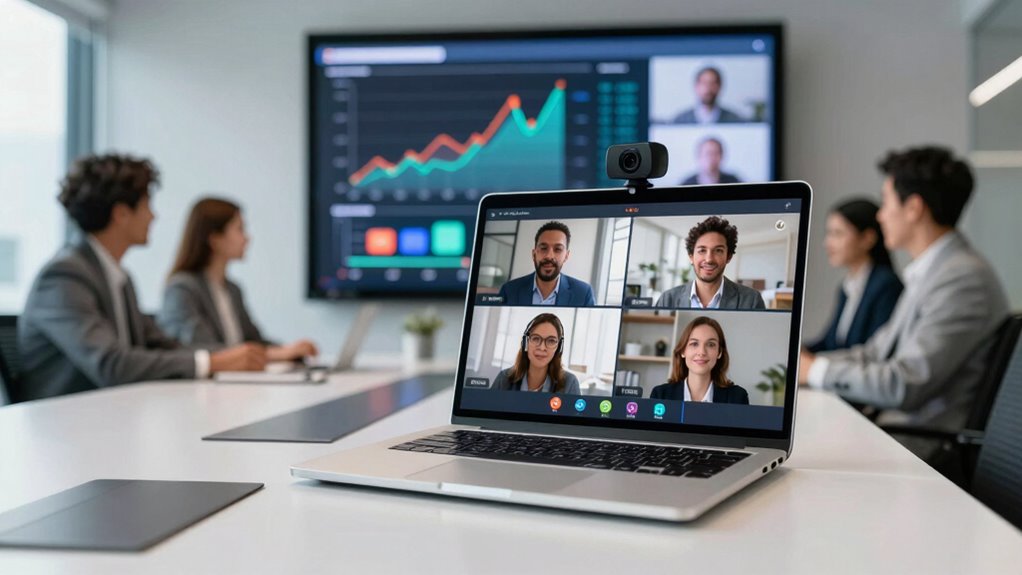
For most remote teams sharing a small meeting room, I’d start with the Yealink UVC34, an all-in-one system built for group calls; the Logitech C920x is a simpler fit for individual desks, while the PANOCORE360 suits teams that need a broad view around a table. The right choice depends on whether you need a personal webcam or a camera and audio system for a room. Auto-framing and voice tracking can help follow group discussion, but add complexity compared with a fixed view. I also weigh audio pickup, setup needs, and how many people must fit in frame. Read on for the full comparison and guidance by team setup.

Get the latest gadgets delivered free — and shop member deals
- Fast, free delivery on millions of items
- Access to Prime Big Deal Days deals on October 6–7
- Prime Video, Amazon Music and more included
Complete the kit


Key Takeaways
- Yealink UVC34 takes the lead for huddle rooms because it combines a room camera and audio in one system; it is more room-focused than desktop models.
- Logitech C920x is the straightforward desk pick: its 1080p image suits individual calls, but it does not provide room audio or group framing.
- PANOCORE360 addresses the widest-coverage need with a 360° view, though teams should confirm that its meeting style and software fit their calls.
- RayBit and TONGVEO combine camera, microphones, speaker, and AI framing, reducing separate gear while adding more setup decisions than a basic webcam.
- Angetube 913 AI King and NexiGo N960E Plus offer 4K and remote controls in desktop-style designs; resolution alone does not replace room-ready audio or framing.
| Angetube 913 AI King 4K Webcam with AI Tracking and Remote Control |  | Best for Presenter Tracking | Resolution: 4K at 30 fps; 1080p at 60 fps | Sensor: 1/2.3-inch CMOS | Viewing angles: 75°, 85°, or 100° | VIEW ON AMAZON | See Our Full Breakdown |
| Yealink UVC34 4K Video Conference System for Huddle Rooms |  | Best for Huddle Rooms | Camera: 8 MP; 4K at 30 fps | Sensor: 1/2.8-inch CMOS | Field of view: 120° | VIEW ON AMAZON | See Our Full Breakdown |
| AV Access BizEye 90 4K Conference Room Camera |  | Best for Image Detail | Sensor: 1/1.8-inch CMOS | Video resolution: 4K at 30 fps | Field of view: 120° | VIEW ON AMAZON | See Our Full Breakdown |
| Logitech C920x HD Pro 1080p Webcam, 30 fps, Black |  | Best for Simple Desk Calls | Resolution: Full HD 1080p | Frame rate: 30 fps | Focus: Autofocus | VIEW ON AMAZON | See Our Full Breakdown |
| RayBit 4K Conference Camera with AI Auto Framing, Microphones, Speaker, and Remote |  | Best All-in-One with Remote | Resolution: UHD 4K | Sensor: CMOS | Viewing angle: 94° | VIEW ON AMAZON | See Our Full Breakdown |
| Logitech Brio 101 Full HD 1080p Webcam, Black |  | Best for Simple Desk Setups | Resolution: Full HD 1080p | Connection: USB-A | Microphone: Built-in | VIEW ON AMAZON | See Our Full Breakdown |
| Logitech BCC950 Desktop Video Conferencing Webcam and Speakerphone |  | Best for Small Shared Desks | Video resolution: 1080p HD | Frame rate: 30 fps | Lens: Carl Zeiss | VIEW ON AMAZON | See Our Full Breakdown |
| PANOCORE360 All-in-One 360° Meeting Camera |  | Best for Around-the-Table Meetings | Video capture: 4K 360° | Video output: 1080p | Connectivity: USB-C or USB-A | VIEW ON AMAZON | See Our Full Breakdown |
| NexiGo N960E Plus 4K Webcam with Ring Light and RF Remote |  | Best for Adjustable Solo Presentations | Image sensor: 1/2.5-inch CMOS | Video modes: 4K at 30 fps; 1080p at 60 fps | Autofocus: Time-of-Flight (ToF) | VIEW ON AMAZON | See Our Full Breakdown |
| TONGVEO 3-in-1 4K Webcam with AI Auto Framing, Voice Tracking, Microphones, Speaker and Remote |  | Best for Moving Presenters | Video resolution: 3840 × 2160 at 30 fps | Sensor: 1/2.8-inch CMOS, 8.29 MP | Digital zoom: 5× | VIEW ON AMAZON | See Our Full Breakdown |
| conference webcam for remote team | Connectivity | Compatibility | Sensor |
|---|---|---|---|
| Angetube 913 AI King 4K Webcam | USB 3.0 | Windows, macOS, Linux, Android | 1/2.3-inch CMOS |
| Yealink UVC34 4K Video Confere | USB Type-A | — | 1/2.8-inch CMOS |
| AV Access BizEye 90 4K Confere | USB | — | 1/1.8-inch CMOS |
| Logitech C920x HD Pro 1080p We | — | Windows 11; Nintendo Switch 2 GameChat mode | — |
| RayBit 4K Conference Camera wi | USB | — | CMOS |
| Logitech Brio 101 Full HD 1080 | — | Microsoft Teams, Zoom, Google Meet, and Nintendo Switch 2 GameChat | — |
| Logitech BCC950 Desktop Video | USB | Microsoft Lync 2013, Skype for Business, Cisco Jabber, and WebEx | — |
| PANOCORE360 All-in-One 360° Me | USB-C or USB-A | Zoom, Microsoft Teams, Webex, and Google Meet | — |
| NexiGo N960E Plus 4K Webcam wi | — | Switch 2, Windows 7–11, macOS 10.6+, and Chrome OS | — |
| TONGVEO 3-in-1 4K Webcam with | USB 2.0/3.0 | Windows 7/8/10/11, Mac OS, laptops, and PCs | 1/2.8-inch CMOS, 8.29 MP |
More Details on Our Top Picks
Angetube 913 AI King 4K Webcam with AI Tracking and Remote Control
The Angetube 913 AI King is a strong fit for remote teams whose presenters move around during calls. Its AI tracking and framing can follow a speaker, while the remote makes it easier to change the 75°, 85°, or 100° view and adjust up to 10× zoom without reaching for the camera. It also offers 4K at 30 fps or 1080p at 60 fps, giving teams a choice between added detail and smoother motion. Compared with the Yealink UVC34, this is more focused on following an individual speaker than equipping a huddle room with a built-in speaker and eight-microphone array. The Angetube’s dual microphones have a stated pickup range of up to 16.4 feet, but a fixed-focus lens and limited room audio setup make it less suited to shared-table meetings.
Pros:- AI tracking and framing can keep a moving speaker in view.
- Offers both 4K at 30 fps and 1080p at 60 fps.
- Remote adjusts viewing angle and controls up to 10× zoom.
- Dual noise-canceling microphones have a stated range of up to 16.4 feet.
Cons:- Fixed focus limits flexibility when subjects move closer to or farther from the camera.
- Lacks the built-in speaker and multi-microphone room setup of the Yealink UVC34.
Best for: Remote presenters who move while speaking and want camera framing and zoom controls at hand.
Not ideal for: Teams sharing a meeting table that need an integrated room speaker and broad microphone coverage.
- Resolution:4K at 30 fps; 1080p at 60 fps
- Sensor:1/2.3-inch CMOS
- Viewing angles:75°, 85°, or 100°
- Zoom:10×
- Connectivity:USB 3.0
- Microphones:Dual noise-canceling; pickup range up to 16.4 feet
- Features:AI tracking, intelligent framing, HDR, privacy cover
- Compatibility:Windows, macOS, Linux, Android
Our verdict“Choose the Angetube 913 AI King if a moving presenter needs automatic framing and remote camera controls.”
Yealink UVC34 4K Video Conference System for Huddle Rooms
For a small room where several people need to be heard, the Yealink UVC34 offers a more complete meeting setup than a typical desktop webcam: a 4K camera, eight-microphone array, and 5W speaker share one compact USB device. Its 120° field of view helps include participants seated around a table, while automatic framing can adjust the camera view as attendance changes. Compared with the Angetube 913 AI King, the UVC34 gives up the Angetube’s remote-controlled 10× zoom in favor of integrated room audio and a wider fixed view. Its 5× zoom is digital, so tight framing may cost image detail, and its USB-first design may not suit teams seeking remote device management without additional software. For plug-and-play huddle rooms, though, fewer separate components mean a simpler setup.
Pros:- Combines a 4K camera, eight microphones, and a 5W speaker.
- 120° field of view accommodates multiple people around a table.
- Automatic framing, noise reduction, and echo cancellation support group calls.
- Electric privacy lens cap covers the camera when it is not in use.
Cons:- 5× zoom is digital, which can reduce detail when framing tightly.
- Remote management may require separate software.
Best for: Small remote teams that meet around one table and want camera, room microphones, and speaker in a single USB device.
Not ideal for: Teams that need optical zoom, extensive remote management, or a camera dedicated to tracking a presenter across a larger room.
- Camera:8 MP; 4K at 30 fps
- Sensor:1/2.8-inch CMOS
- Field of view:120°
- Zoom:5× digital
- Audio:Eight-microphone array; built-in 5W speaker
- Connectivity:USB Type-A
- Dimensions:2.16 × 14.96 × 2.16 inches
- Weight:3.5 pounds
- Features:Auto framing, face enhancement, noise reduction, echo cancellation, electric lens cap
Our verdict“Choose the UVC34 for a small meeting room that needs a wide view and integrated group audio.”
AV Access BizEye 90 4K Conference Room Camera
The AV Access BizEye 90 pairs 4K video with a listed 1/1.8-inch CMOS sensor, a larger sensor format than the Yealink UVC34’s 1/2.8-inch unit. That makes this a compelling choice for teams that want detailed video and may meet in less-than-ideal lighting. Its 120° view and AI auto framing, presenter tracking, and gallery modes can also support changing meeting layouts. Unlike the Logitech C920x, which sticks to 1080p and autofocus, the BizEye 90 adds tracking and 4K capture but uses fixed focus. Its 5× digital zoom can also soften detail when magnified, and the microphone is specified for use within up to 3 meters. I’d favor it for image-led calls with nearby speakers, not as a substitute for a room audio system.
Pros:- 4K capture and a listed 1/1.8-inch CMOS sensor support detailed video.
- 120° field of view can include multiple meeting participants.
- AI framing, presenter tracking, and individual gallery modes add flexible framing.
- USB plug-and-play setup works with common conferencing and streaming software.
Cons:- Fixed focus offers less flexibility than the Logitech C920x’s autofocus.
- Digital zoom may reduce image detail, and the microphone range is specified up to 3 meters.
Best for: Remote teams that prioritize 4K image detail, wide group framing, and presenter tracking in a USB camera.
Not ideal for: Groups that sit farther than 3 meters from the camera or need autofocus and integrated room audio.
- Sensor:1/1.8-inch CMOS
- Video resolution:4K at 30 fps
- Field of view:120°
- Zoom:5× digital
- Camera control:ePTZ
- Microphone range:Up to 3 meters
- Focus:Fixed focus
- Connectivity:USB
- Mounting:Laptop, monitor, or tripod
Our verdict“Choose the BizEye 90 if 4K detail and AI framing matter more than autofocus or longer-range room audio.”
Logitech C920x HD Pro 1080p Webcam, 30 fps, Black
The Logitech C920x suits remote workers who want dependable desk-call basics without the extra room hardware or tracking features of the Yealink UVC34 and AV Access BizEye 90. Its 1080p video, autofocus, and automatic lighting adjustment address the everyday problems of a face that looks soft or poorly lit on calls. Dual stereo microphones provide onboard audio, while the included XSplit VCam license offers background blur or replacement for calls where the room is distracting. The tradeoff is a more personal, fixed setup: this model lacks AI framing, 4K capture, and a privacy shutter. That makes it less adaptable for shared meeting rooms than the Yealink, but its autofocus gives it an advantage over fixed-focus options for a desk user who shifts position.
Pros:- Autofocus and automatic lighting adjustment support clearer desk calls.
- Full HD 1080p capture is suited to standard video meetings.
- Dual stereo microphones are built into the webcam.
- XSplit VCam license supports background blur and replacement.
Cons:- No privacy shutter is included.
- Lacks 4K capture and AI framing available on the AV Access BizEye 90.
Best for: A remote employee who wants an autofocus 1080p webcam for regular one-person calls and background effects.
Not ideal for: Teams needing 4K, automatic group framing, a privacy shutter, or integrated room audio.
- Resolution:Full HD 1080p
- Frame rate:30 fps
- Focus:Autofocus
- Audio:Dual stereo microphones
- Lighting:Automatic lighting adjustment
- Software:3-month XSplit VCam license
- Privacy shutter:Not included
- Compatibility:Windows 11; Nintendo Switch 2 GameChat mode
Our verdict“Choose the C920x for straightforward one-person calls where autofocus matters more than 4K or meeting-room features.”
RayBit 4K Conference Camera with AI Auto Framing, Microphones, Speaker, and Remote
The RayBit 4K Conference Camera combines a camera, microphone array, speaker, and remote in a single USB unit, making it useful for teams that want to control a shared meeting setup without adding separate audio gear. Its AI auto framing and presenter tracking help keep speakers in view, while the remote handles zoom, presets, rotation, mute, and volume. Compared with the Yealink UVC34, the RayBit includes similar all-in-one room hardware and remote control, but its stated 94° viewing angle is narrower than Yealink’s 120° view. That can make it a better match for a smaller group or tighter room, but less forgiving when participants spread out. The 5× digital zoom also has less reach than the Angetube 913 AI King’s 10×, and may lose detail as the view tightens.
Pros:- Combines 4K camera, microphone array, speaker, and remote.
- AI auto framing and presenter tracking can follow meeting speakers.
- Remote controls zoom, presets, rotation, mute, and speaker volume.
- Plug-and-play USB connectivity supports a broad range of computers and conferencing apps.
Cons:- 94° viewing angle is narrower than the Yealink UVC34’s 120° view.
- 5× digital zoom offers less reach than the Angetube 913 AI King and can reduce detail.
Best for: Small remote teams that want an all-in-one USB camera and audio unit with convenient remote controls.
Not ideal for: Larger huddle groups that need a wider view or users who need more than 5× digital zoom.
- Resolution:UHD 4K
- Sensor:CMOS
- Viewing angle:94°
- Zoom:5× digital
- Audio:Noise-canceling microphone array and one speaker
- Voice pickup:360°
- Connectivity:USB
- Focus:Autofocus
- Dimensions and weight:2.36 × 4.72 × 1.18 inches; 450 g
Our verdict“Choose the RayBit for a compact team setup where integrated audio and remote controls outweigh the need for a very wide view.”
Logitech Brio 101 Full HD 1080p Webcam, Black
The Brio 101 suits remote workers who need a straightforward camera for individual calls, with 1080p video, a built-in microphone, and a sliding cover for privacy between meetings. RightLight boosts brightness in dimmer rooms, which can help keep your face visible without adding a separate light. Compared with the Logitech BCC950, this is a simpler personal webcam: it has no speakerphone or camera movement controls, but takes up less room and is easier to place on a laptop or monitor. Its USB-A connection may call for an adapter on newer USB-C-only laptops, and the description gives conflicting recycled-plastic figures, so I would not rely on a precise percentage. Choose it for uncomplicated one-person calls; skip it for conference-room audio or group framing.
Pros:- Full HD 1080p video for everyday video meetings
- RightLight boosts brightness in dim settings
- Sliding privacy cover blocks the lens when not in use
- Built-in microphone and compatibility with common meeting platforms
Cons:- USB-A connection may require an adapter for newer laptops
- Built-in microphone is a basic alternative to a dedicated conference speakerphone
- Product description gives inconsistent recycled-plastic percentages
Best for: Remote employees who want a basic, privacy-conscious webcam for one-person calls on Teams, Zoom, or Google Meet.
Not ideal for: Teams sharing a room or people with USB-C-only laptops who need an integrated speakerphone or a direct connection.
- Resolution:Full HD 1080p
- Connection:USB-A
- Microphone:Built-in
- Privacy:Integrated sliding cover
- Lighting:RightLight boosts brightness by up to 50%
- Compatibility:Microsoft Teams, Zoom, Google Meet, and Nintendo Switch 2 GameChat
Our verdict“Pick the Brio 101 for simple individual calls with a privacy cover, and look elsewhere for shared-room audio or USB-C connectivity.”
Logitech BCC950 Desktop Video Conferencing Webcam and Speakerphone
The BCC950 is the most meeting-focused choice here for a small team gathered around one desk: its webcam and full-duplex speakerphone share a single USB connection, while a remote and base controls handle camera movement, calls, mute, and volume. That integrated setup can simplify a shared workspace compared with pairing a webcam like the Brio 101 with separate audio gear. The tradeoff is reach: Logitech specifies microphone pickup up to 8 feet from the base, so it fits a compact table better than a larger conference room. Its listed compatibility names older platforms such as Lync 2013 and Skype for Business, so teams relying on current meeting software should check their setup before choosing it. I would favor this over a personal webcam when several nearby colleagues need to speak and hear each other.
Pros:- Combines webcam and speakerphone in one desktop device
- Full-duplex audio with a noise-cancelling microphone
- Remote and base controls cover camera, volume, mute, and calls
- 1080p video at 30 fps
Cons:- Microphone pickup is specified only up to 8 feet from the base
- Desktop base and camera controls are more equipment than an individual caller needs
- Listed platform compatibility centers on older conferencing software
Best for: Small teams meeting around a shared desk who want a single USB webcam and speakerphone with physical call controls.
Not ideal for: Larger meeting rooms, teams needing a longer stated microphone pickup range, or buyers seeking a compact personal webcam.
- Video resolution:1080p HD
- Frame rate:30 fps
- Lens:Carl Zeiss
- Microphone pickup:Up to 8 feet from the base
- Frequency response:200 Hz–8 kHz
- Connectivity:USB
- Compatibility:Microsoft Lync 2013, Skype for Business, Cisco Jabber, and WebEx
Our verdict“Choose the BCC950 for a compact shared desk where integrated speakerphone audio and camera controls matter more than room-wide reach.”
PANOCORE360 All-in-One 360° Meeting Camera
For teams who need everyone around a table visible, the PANOCORE360 offers a different format from the person-facing webcams in this roundup. Its four-camera 360° capture, three-microphone array, and built-in speaker are designed for rooms with up to 12 participants; active-speaker focus can help remote colleagues follow whoever is talking. Dual 180° viewing modes add flexibility for different room layouts. Compared with the Logitech BCC950, it is aimed at a larger group and lists microphone pickup up to 10 feet, though neither spec promises coverage for every room shape. It captures 4K but outputs 1080p, so buyers should not expect a 4K meeting feed. The small-to-medium-room focus and possible need for the included adapter on older or low-power computers make this a specialized room camera, not a convenient laptop webcam.
Pros:- Four cameras provide 360° capture and dual 180° viewing modes
- Combines camera, speaker, and three-microphone array
- Active-speaker focus and AI voice processing support group meetings
- Local MicroSD recording and USB-A or USB-C connectivity
Cons:- Designed for small to medium rooms, not broad room coverage
- Video output is 1080p despite 4K capture
- Full performance may require the included power adapter on older or low-power computers
Best for: Small to medium remote teams meeting around a table who want all-around video, shared audio, and active-speaker focus.
Not ideal for: Solo callers, teams in large rooms, or buyers who require 4K video output rather than 4K capture with 1080p output.
- Video capture:4K 360°
- Video output:1080p
- Connectivity:USB-C or USB-A
- Microphones:Omnidirectional three-microphone array
- Microphone pickup:Up to 10 ft (3 m)
- Room capacity:Up to 12 participants
- Recording:Local recording to MicroSD card
- Compatibility:Zoom, Microsoft Teams, Webex, and Google Meet
Our verdict“Choose the PANOCORE360 when a small or medium team needs a shared 360° view, and skip it for personal calls or native 4K output.”
NexiGo N960E Plus 4K Webcam with Ring Light and RF Remote
The NexiGo N960E Plus is best suited to someone presenting from a desk who wants to tune both framing and lighting without reaching for the camera. It offers 4K at 30 fps or 1080p at 60 fps, with ToF autofocus, digital zoom, and an RF remote for settings and preset positions. The remotely adjustable ring light gives it a useful role for dim home offices, while its 360° rotation and tripod thread offer more placement options than the fixed setup of the Logitech Brio 101. This remains a single-person webcam with dual microphones, not a room system like the PANOCORE360. Its 4K mode is limited to 30 fps and zoom is digital up to 4x, so reframing cannot match the detail or reach of optical zoom. Choose it for a controlled presentation setup, not a group around a table.
Pros:- Offers 4K at 30 fps or 1080p at 60 fps
- ToF autofocus and 3D noise reduction support clear calls
- Remote-adjustable ring light has three color modes and stepless brightness
- RF remote, privacy cover, and flexible mounting options
Cons:- 4K video is limited to 30 fps
- Digital zoom is limited to 4x
- Designed as a personal webcam rather than a shared-room conference system
Best for: Remote presenters and trainers who want adjustable lighting, autofocus, and remote camera settings at an individual workstation.
Not ideal for: Teams meeting around a table or buyers who need optical zoom, higher frame rates in 4K, or an integrated speaker.
- Image sensor:1/2.5-inch CMOS
- Video modes:4K at 30 fps; 1080p at 60 fps
- Autofocus:Time-of-Flight (ToF)
- Digital zoom:Up to 4x
- Lighting:Three color modes with stepless brightness adjustment
- Microphones:Dual noise-cancelling
- Controls:RF remote with OSD menu and preset positions
- Compatibility:Switch 2, Windows 7–11, macOS 10.6+, and Chrome OS
Our verdict“Pick the N960E Plus for a solo presentation setup with remote lighting and framing controls, rather than a room full of participants.”
TONGVEO 3-in-1 4K Webcam with AI Auto Framing, Voice Tracking, Microphones, Speaker and Remote
The TONGVEO 3-in-1 makes the most sense for a presenter who moves or shares speaking duties on camera. AI auto framing and voice tracking aim to keep participants or the active speaker in view, and the remote switches among three fields of view and up to 5× digital zoom. A built-in 3W speaker and dual microphones make it more self-contained than the NexiGo N960E Plus, which focuses on adjustable lighting and solo framing instead. That convenience comes with limits: the TONGVEO’s 4K capture tops out at 30 fps, its zoom is digital, and no power adapter is included. The stated microphone pickup reaches up to 16.4 feet, but the product data does not specify room capacity. I would choose it for a flexible presenter setup, not assume it can replace a dedicated room system like the PANOCORE360.
Pros:- AI auto framing and voice tracking help keep speakers in view
- Remote changes zoom and three field-of-view settings
- Built-in 3W speaker and dual noise-cancelling microphones
- Driver-free USB connection and included privacy cover
Cons:- 5× zoom is digital rather than optical
- 4K capture is limited to 30 fps
- No power adapter is included
Best for: Remote presenters or small teams who want automatic framing and voice tracking plus built-in speaker and microphones.
Not ideal for: Large conference rooms, buyers who need optical zoom or 4K above 30 fps, and setups that require a supplied power adapter.
- Video resolution:3840 × 2160 at 30 fps
- Sensor:1/2.8-inch CMOS, 8.29 MP
- Digital zoom:5×
- Field of view:118°, 100°, and 88°
- Microphones:Dual omnidirectional microphones with noise cancellation
- Microphone pickup:Up to 16.4 ft
- Speaker:3W
- Connectivity:USB 2.0/3.0
- Compatibility:Windows 7/8/10/11, Mac OS, laptops, and PCs
Our verdict“Choose the TONGVEO for a presenter who needs automatic reframing and built-in audio, and look to a dedicated room camera for larger groups.”
How We Picked
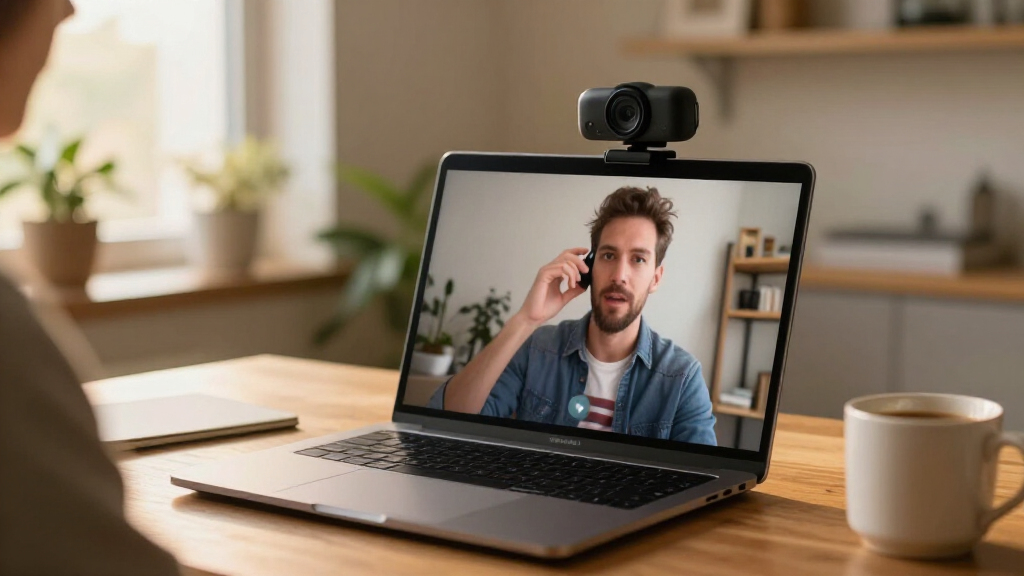
I ranked these options by how well each matches a real remote-team setup: a single person at a desk, a small group in a huddle room, or a team that needs wider room coverage. I weighed camera framing and tracking, audio components, connection and control needs, and the amount of extra gear a buyer may need. A higher-resolution sensor matters less if the camera cannot frame the people on a call or the audio setup falls short for the room.
The ranking favors products that solve a common team problem with a clear setup and purpose. That puts the Yealink UVC34 ahead for shared rooms, while the Logitech C920x earns a place for uncomplicated individual calls. Specialized options such as the 360° PANOCORE360 and all-in-one RayBit and TONGVEO systems rank by their fit for specific meeting layouts; basic desk webcams rank lower for room use because they do not offer the same group coverage or integrated audio.
| conference webcam for remote team | Connectivity |
|---|---|
| Angetube 913 AI King 4K Webcam | USB 3.0 |
| Yealink UVC34 4K Video Confere | USB Type-A |
| AV Access BizEye 90 4K Confere | USB |
| Logitech C920x HD Pro 1080p We | — |
| RayBit 4K Conference Camera wi | USB |
| Logitech Brio 101 Full HD 1080 | — |
| Logitech BCC950 Desktop Video | USB |
| PANOCORE360 All-in-One 360° Me | USB-C or USB-A |
| NexiGo N960E Plus 4K Webcam wi | — |
| TONGVEO 3-in-1 4K Webcam with | USB 2.0/3.0 |
Factors to Consider When Choosing Conference Webcam For Remote Teams
Before choosing a model, I’d map the camera to the room and meeting habits first. These factors help avoid paying for features your team cannot use—or expecting a desk webcam to cover a shared room.
Start With the Meeting Space
Count the people who usually appear on camera and note how far they sit from the screen. A personal webcam such as the C920x is designed around one seated participant, while room systems are intended to cover a group. A wide field of view can include more people, but it may also show distracting room details. Measure the table-to-camera distance and decide where the camera can be mounted before shopping. Teams that move between desks and rooms may need separate devices because a camera suited to one setting may be awkward in the other.
Treat Audio as a Separate Room Problem
Camera quality cannot fix speech that is distant, muffled, or drowned out by room noise. For a shared room, consider participant distance, echoes, and whether people speak from different seats. An all-in-one camera and speaker system can reduce cables and setup steps, but its built-in audio still needs to suit the room’s size and layout. A desktop webcam paired with a headset can work better for one person than a room device at a desk. Before choosing, check how the system connects to your meeting computer and whether your team can use its audio components with its usual call software.
Choose Automation for the Way People Meet
Auto-framing and voice tracking can keep a group visible when speakers change seats or move around. They are less useful when everyone sits in fixed positions or a meeting uses a shared presentation most of the time. Automation can also change the composition during a call, which may distract participants who prefer a stable view. Think through who controls the camera and whether a remote or software controls are practical in your room. For a static desk setup, a fixed webcam may be simpler to position and easier for colleagues to use without instructions.
Do Not Buy on Resolution Alone
4K can preserve detail and give room to crop an image, but its benefit depends on lighting, framing, connection, and the video platform’s handling of the call. Many everyday meetings do not need more detail if participants appear too small or poorly lit. A well-positioned 1080p camera may serve an individual call better than a higher-resolution model placed too far away. Check whether the computer and call software support the modes you plan to use. Compare the whole setup—camera placement, light, audio, and call settings—before treating resolution as the deciding feature.
Account for Setup and Shared Ownership
A remote team needs a camera that colleagues can start using consistently, not just one with a long feature list. Consider who will install it, configure permissions, manage a remote, and troubleshoot when the usual meeting host is away. Integrated systems can cut the number of separate devices, while standalone webcams can be easier to move between computers. Check the connection type, included controls, mounting options, and whether the device works with your team’s operating systems and meeting applications. If several rooms need cameras, favor consistent controls and placement so people do not learn a new setup in every space.
Pay for Coverage You Will Use
It makes sense to pay more for room coverage, integrated audio, or tracking when those features replace equipment or solve a recurring meeting problem. A premium room camera brings little value to a person who mostly takes calls alone at a laptop. Conversely, choosing a basic desktop webcam for a shared table may leave the team needing extra microphones or a second camera. Write down the room’s actual needs, including who speaks, where they sit, and how often meetings are hybrid. Then compare the complete setup requirements rather than the number of features on the box.
Frequently Asked Questions
Should I buy a room camera or a separate webcam for each remote worker?
Choose based on where the calls happen. A room camera makes sense when several colleagues regularly meet around one table and need to appear together. Separate desktop webcams suit individual calls and give each worker control over framing and placement. If your team uses both formats often, one device may not serve both well. Map the main meeting locations before deciding how many cameras to buy.
Is a 360° meeting camera a good choice for a small conference room?
It can be useful when participants sit around a table and the camera needs to show people in multiple directions. The tradeoff is that a panoramic room view may include more background and may not suit every call layout. Check how the camera presents participants to remote attendees and whether that view works with your meeting software. Compare its coverage with a conventional room camera’s framing before choosing. A 360° design is most useful when the seating arrangement calls for it, rather than as a default upgrade.
Do auto-framing and voice tracking help if our team stays seated?
They may add little when participants remain in fixed seats and the camera can already frame the full group. Tracking is more relevant when speakers move or when a large room makes a fixed view less useful. Automated reframing can change the image during discussion, so check whether your team prefers that behavior. A stable camera may also be easier for colleagues to operate without adjusting settings. Choose tracking to solve a specific coverage problem, not simply because it is available.
Can a webcam with a built-in speaker and microphones replace our room audio system?
Possibly for a small room, but the answer depends on room size, participant distance, and acoustic conditions. Integrated audio can simplify cabling and setup, especially for a huddle space. It may not pick up every voice clearly in a larger room or where people sit far from the camera. Check the device’s intended room use and test the planned seating arrangement before standardizing it across several rooms. If clear speech is the priority, evaluate microphone coverage alongside camera framing.
What should I check before buying a conference webcam for a team room?
Confirm that the camera works with the computers and meeting applications your team uses, then check connection and mounting options. Measure the room and decide how many seats need to fit in the image. Review whether the system’s audio components suit that space and how colleagues will control the camera. Consider who will install and support it after the first setup. A short checklist of room layout, compatibility, audio, and daily controls can prevent a technically capable camera from becoming difficult to use.
Conclusion
For a shared huddle room, I recommend the Yealink UVC34 as the best overall fit in this lineup. The Logitech C920x is my best value direction for individual desk calls where straightforward 1080p video is enough, while the RayBit is a strong premium-style choice for teams seeking an integrated camera, microphones, speaker, and AI framing. Beginners who want a familiar, simple desk setup can start with the Logitech Brio 101; it is better suited to personal calls than group rooms. For broad table coverage, consider the PANOCORE360, and for a 4K desk camera with remote control, compare the Angetube 913 AI King and NexiGo N960E Plus. Choose by room layout and audio needs first, then narrow the shortlist by resolution and automation.
Fall Picks
fall essentials
As an affiliate, we earn on qualifying purchases.