
For small teams that need shared files, room to grow, and business-ready processing, I’d start with the TerraMaster F4-424 Pro as my best overall pick. The Synology DS725+ stands out for businesses that value an expandable system, while the Buffalo TeraStation Essentials 2025 comes with drives included for a more ready-to-deploy four-bay setup. The main tradeoffs are how much storage flexibility you need, whether you want to supply drives yourself, and how much setup and maintenance your team can handle. A simple two-bay NAS may suit a small office with modest file needs, while shared work across larger files can favor more capable hardware. Read on for the full comparison and guidance on choosing the right network attached storage for your small business.

Get the latest gadgets delivered free with Prime
- Fast, free delivery on millions of items
- Prime Video, Amazon Music and more included
- Member-only deals all year
Complete the kit


Key Takeaways
- TerraMaster F4-424 Pro leads this lineup for businesses seeking four bays, a strong processor, and 32GB of memory, though its diskless configuration means you must choose and install drives.
- Synology DS725+ is the lineup’s expandable two-bay option, making it a better match for teams planning future growth than a fixed-capacity, drive-included system.
- Buffalo TeraStation Essentials 2025 combines four bays with included drives, trading the freedom to select every component for a simpler starting point.
- Buffalo LinkStation 210 is a basic one-bay choice, but its single drive offers less protection against drive failure than a multi-bay setup configured for redundancy.
- The product list ranges from personal-storage models to business-oriented systems, so the right pick depends on workload and support needs, not the NAS label alone.
| TerraMaster F4-424 Pro 4-Bay NAS (Diskless), Intel Core i3-N305 8-Core, 32GB DDR5 |  | Best for Multi-User Performance | Drive bays: 4 | Processor: Intel Core i3-N305, 8 cores/8 threads, up to 3.8GHz | Memory: 32GB DDR5 4800MHz, non-ECC and non-upgradable | VIEW ON AMAZON | See Our Full Breakdown |
| BUFFALO LinkStation 210 2TB 1-Bay NAS Network Attached Storage |  | Best for Simple Single-User Backups | Drive bays: 1 | Capacity: 2TB | Drive inclusion: Hard drive included | VIEW ON AMAZON | See Our Full Breakdown |
| BUFFALO LinkStation 720 8TB 2-Bay Private Cloud NAS with Hard Drives Included |  | Best for Ready-to-Use Shared Storage | Drive bays: 2 | Total capacity: 8TB | Drive inclusion: Hard drives included | VIEW ON AMAZON | See Our Full Breakdown |
| UGREEN NASync DXP2800 2-Bay Diskless NAS |  | Best for Small Offices Running Extra Apps | Drive bays: 2 HDD bays | Processor: Intel N100 quad-core | Memory: 8GB DDR5 | VIEW ON AMAZON | See Our Full Breakdown |
| Buffalo TeraStation Essentials 2025 4-Bay Desktop NAS 8TB (4 x 2TB) with Hard Drives Included | 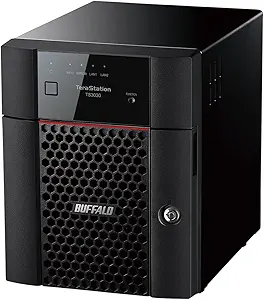 | Best Turnkey Four-Bay Office NAS | Drive bays: 4 | Raw capacity: 8TB (4 x 2TB) | Preconfigured RAID: RAID 5, 4TB usable | VIEW ON AMAZON | See Our Full Breakdown |
| Synology DiskStation DS223j 2-Bay NAS Enclosure (Diskless) |  | Best Budget Synology for Light Business Use | Brand: Synology | Model: DS223j | Drive Bays: 2 | VIEW ON AMAZON | See Our Full Breakdown |
| Synology DS725+ 2-Bay Diskless NAS – Expandable Private Cloud Storage for Home and Small Business |  | Best Scalable Pick | Brand: Synology | Model: DS725+ | Drive Bays: 2 (expandable to 7 with DX525) | VIEW ON AMAZON | See Our Full Breakdown |
| Synology DS225+ 2-Bay Diskless NAS Media Server |  | Best for Media-Heavy Offices | Model: DS225+ | Drive Bays: 2 | Drive Configuration: Diskless | VIEW ON AMAZON | See Our Full Breakdown |
| UGREEN DXP4800 GT 4-Bay NAS |  | Best Performance Pick | Model: DXP4800 GT | Drive Bays: 4 SATA bays, up to 32TB each | Processor: AMD Ryzen Embedded R2514, 4 cores / 8 threads, up to 3.70 GHz | VIEW ON AMAZON | See Our Full Breakdown |
| Yxk Zero1 2-Bay Desktop NAS for Home & Personal Storage (Diskless) |  | Best Bare-Bones Starter | Brand: Yxk | Drive Bays: 2 | RAM: 4GB | VIEW ON AMAZON | See Our Full Breakdown |
| network attached storage for small business | Drive bays | Warranty |
|---|---|---|
| TerraMaster F4-424 Pro 4-Bay N | 4 | — |
| BUFFALO LinkStation 210 2TB 1- | 1 | 2 years, including hard drive |
| BUFFALO LinkStation 720 8TB 2- | 2 | 2-year manufacturer limited warranty |
| UGREEN NASync DXP2800 2-Bay Di | 2 HDD bays | 2 years |
| Buffalo TeraStation Essentials | 4 | — |
| Synology DiskStation DS223j 2- | 2 | 2 years |
| Synology DS725+ 2-Bay Diskless | 2 (expandable to 7 with DX525) | 3 years |
| Synology DS225+ 2-Bay Diskless | 2 | 3 years |
| UGREEN DXP4800 GT 4-Bay NAS | 4 SATA bays, up to 32TB each | Manufacturer limited warranty |
| Yxk Zero1 2-Bay Desktop NAS fo | 2 | 2 years |
More Details on Our Top Picks
TerraMaster F4-424 Pro 4-Bay NAS (Diskless), Intel Core i3-N305 8-Core, 32GB DDR5
The TerraMaster F4-424 Pro is my pick for a small office where several people work with shared files and the NAS may also run extra services. Its 8-core Intel processor, 32GB of memory, and dual 2.5GbE ports give it more room for concurrent workloads than the simpler Buffalo LinkStation 720. Two NVMe slots also allow SSD caching, which can help with frequently accessed data, though actual gains depend on the workload and drives. The tradeoff is that it arrives without storage drives, so buyers must budget for and configure disks separately. Its memory is non-ECC and cannot be upgraded, limiting long-term flexibility. I’d choose it over the 4-bay Buffalo TeraStation Essentials when processing headroom matters more than included drives and a preconfigured RAID setup.
Pros:- Eight-core Intel processor and 32GB DDR5 provide headroom for concurrent tasks.
- Dual 2.5GbE ports support link aggregation up to 5Gb for compatible network setups.
- Two M.2 NVMe slots allow SSD caching.
- Tool-free drive trays and sound-dampening construction ease installation and placement.
Cons:- Diskless configuration means drives must be selected and purchased separately.
- Memory is non-ECC and cannot be upgraded.
- Maximum throughput depends on the specified RAID and drive configuration.
Best for: Small offices with multiple users, larger shared-file workloads, or plans to run additional NAS services.
Not ideal for: Teams that want a ready-to-use NAS with included drives, or require expandable ECC memory for business workloads.
- Drive bays:4
- Processor:Intel Core i3-N305, 8 cores/8 threads, up to 3.8GHz
- Memory:32GB DDR5 4800MHz, non-ECC and non-upgradable
- Networking:Dual 2.5GbE; link aggregation up to 5Gb
- SSD cache slots:2 x M.2 NVMe
- USB:2 x USB 3.2 10Gbps
- Drive inclusion:Diskless
- RAID support:RAID 0/1/5/6/10, JBOD, Single, TRAID
Our verdict“Choose the F4-424 Pro if your small office needs strong multi-user processing and networking and can handle drive selection and setup.”
BUFFALO LinkStation 210 2TB 1-Bay NAS Network Attached Storage
The BUFFALO LinkStation 210 suits a very small operation that needs one shared place for routine backups and does not need drive redundancy. Its included 2TB drive and straightforward setup make it simpler to put into service than the diskless TerraMaster F4-424 Pro, which requires drive selection and configuration. The LinkStation’s closed system and SSL encryption offer a relatively contained approach to file storage, while its backup utility targets basic PC workflows. The main compromise is its single drive bay: a drive failure can take the stored data with it, so separate backups remain necessary. It also offers less capacity and expansion headroom than the two-bay LinkStation 720. I’d keep its role narrow: an entry-level backup destination, not the foundation for a growing team’s shared storage.
Pros:- Includes a 2TB hard drive, avoiding separate drive selection.
- Subscription-free storage with SSL encryption.
- Includes NAS Navigator and PC backup software.
- Two-year warranty covers the hard drive.
Cons:- Single bay provides no RAID redundancy.
- 2TB capacity is limited compared with the LinkStation 720’s 8TB configuration.
- Not compatible with macOS 26 or later according to the supplied product data.
Best for: A sole proprietor or very small office seeking an included-drive destination for basic PC and Mac backups.
Not ideal for: Teams that need RAID redundancy, room to expand, newer macOS compatibility, or several people accessing files at once.
- Drive bays:1
- Capacity:2TB
- Drive inclusion:Hard drive included
- Compatibility:Windows and macOS 15 (Sequoia) and earlier
- Security:Closed system with SSL encryption
- Backup software:NAS Navigator utility and PC backup software
- Warranty:2 years, including hard drive
- Support:24/7 US-based support
Our verdict“Pick the LinkStation 210 for basic centralized backups when included storage and simple setup matter more than redundancy or growth.”
BUFFALO LinkStation 720 8TB 2-Bay Private Cloud NAS with Hard Drives Included
For a small team that wants usable shared storage without sourcing disks, the BUFFALO LinkStation 720 is a more practical starting point than the diskless UGREEN NASync DXP2800. It includes 8TB across two drives and supports RAID 1 for a mirrored setup, though that leaves about 4TB usable capacity. RAID 0 uses the combined capacity but does not provide the same drive-failure protection. Dropbox, Azure, and OneDrive integration can support a hybrid backup workflow, while the Buffalo’s closed system keeps setup focused on storage and file sharing. That simplicity also limits third-party app flexibility compared with the UGREEN, which supports Docker and virtual machines. I’d choose the LinkStation 720 for straightforward team folders and backups, provided its network connection and available capacity fit the office.
Pros:- Includes two hard drives with 8TB total capacity.
- RAID 1 offers a mirrored drive configuration.
- Integrates with Dropbox, Azure, and OneDrive for cloud sync.
- Supports secure file sharing with SSL encryption and access restrictions.
Cons:- RAID 1 leaves approximately 4TB usable from the included 8TB.
- Closed system limits third-party app flexibility compared with the UGREEN NASync DXP2800.
- Requires a router or network connection for full functionality.
Best for: Small teams that want included drives, mirrored storage, and simple shared folders with optional cloud sync.
Not ideal for: Businesses needing expandable capacity, flexible third-party apps, or a higher usable capacity while keeping RAID 1 enabled.
- Drive bays:2
- Total capacity:8TB
- Drive inclusion:Hard drives included
- RAID modes:RAID 0 and RAID 1
- Cloud integration:Dropbox, Azure, and OneDrive
- Compatibility:Windows and macOS
- Warranty:2-year manufacturer limited warranty
- Included accessories:AC adapter, Cat 6A Ethernet cable, and quick setup guide
Our verdict“Choose the LinkStation 720 for simple, drive-included team storage with RAID 1, if its reduced mirrored capacity is enough.”
UGREEN NASync DXP2800 2-Bay Diskless NAS
The UGREEN NASync DXP2800 is the most adaptable two-bay option in this group for a small office that wants its NAS to do more than hold backups. Its Intel N100 processor, 8GB DDR5, and Docker and virtual machine support open the door to running compatible services alongside shared storage. That gives it more room for experimentation than the closed-system Buffalo LinkStation 720, while its dual M.2 slots add a path for NVMe storage or caching. This flexibility comes with more setup work: advanced services need configuration, compatible devices, and suitable drives. The DXP2800 is also diskless, unlike the LinkStation, which arrives with hard drives. I’d favor it for a technically comfortable owner who values apps and a 2.5GbE connection, rather than a team seeking a turnkey backup appliance.
Pros:- Intel N100 and 8GB DDR5 support a range of NAS and app workloads.
- Docker and virtual machine support provide flexibility beyond basic file storage.
- 2.5GbE networking can speed transfers on a compatible network.
- Two NVMe slots support additional SSD storage options.
Cons:- HDDs and SSDs are sold separately.
- Advanced features can require technical setup and compatible devices.
- Two HDD bays offer less drive expansion than the four-bay TerraMaster F4-424 Pro.
Best for: A technically comfortable small-business owner who wants shared storage plus Docker, virtual machines, or a compatible media server.
Not ideal for: Teams that want included drives and a preconfigured storage setup, or users who do not want to configure advanced features.
- Drive bays:2 HDD bays
- Processor:Intel N100 quad-core
- Memory:8GB DDR5
- Networking:2.5GbE
- M.2 slots:2 NVMe
- Maximum stated storage:Up to 80TB
- Drive inclusion:HDDs and SSDs sold separately
- Warranty:2 years
Our verdict“Pick the DXP2800 if you want a compact, app-capable NAS and are prepared to supply drives and configure services.”
Buffalo TeraStation Essentials 2025 4-Bay Desktop NAS 8TB (4 x 2TB) with Hard Drives Included
The Buffalo TeraStation Essentials 2025 is the straightforward four-bay choice for an office that wants installed drives and a defined RAID setup from the start. It ships with four 2TB drives in RAID 5, giving 4TB usable capacity as configured, and its 2.5GbE port supports faster transfers than a basic gigabit link when the rest of the network can keep up. Cloud integration and 256-bit drive encryption add options for backup and data protection. Compared with the TerraMaster F4-424 Pro, the TeraStation is less focused on processing power and NVMe caching, but is easier to put into service because it includes drives and a three-year warranty. Its 5400 rpm disks may limit performance, and four bays do not mean the full 8TB is available in the default RAID 5 setup.
Pros:- Four included 2TB drives arrive preconfigured in RAID 5.
- 2.5GbE networking supports faster transfers on a compatible network.
- 256-bit drive encryption and backup features support data protection workflows.
- Cloud integration includes Amazon S3, Dropbox, Azure, and OneDrive.
Cons:- Default RAID 5 configuration provides 4TB usable from 8TB raw capacity.
- 5400 rpm drives may constrain performance compared with faster storage setups.
- Ethernet connection requires a suitable network for access.
Best for: Small offices that want a four-drive NAS with included disks, RAID 5 configured, and business-oriented support.
Not ideal for: Teams prioritizing high compute performance, NVMe caching, or 8TB of usable capacity in the supplied RAID configuration.
- Drive bays:4
- Raw capacity:8TB (4 x 2TB)
- Preconfigured RAID:RAID 5, 4TB usable
- Supported RAID modes:RAID 0, RAID 5, RAID 6
- Networking:Ethernet, 2.5GbE
- Drive details:3.5-inch SATA-600, 5400 rpm
- Security:256-bit drive encryption
- Warranty and support:3-year warranty with hard drive coverage; 24/7 US-based support
Our verdict“Choose the TeraStation Essentials 2025 if you want included drives and four-bay RAID 5 with less initial configuration.”
Synology DiskStation DS223j 2-Bay NAS Enclosure (Diskless)
For a small office that wants Synology’s software ecosystem without the premium price, the DS223j is the most affordable way in. DSM gives you the same file sharing, private cloud access, and automated backup tools as the pricier DS725+, just with more modest hardware underneath. Where the DS725+ scales to 140TB and handles 30 IP cameras, the DS223j is built for a handful of users sharing documents and photos. Compared with the Yxk Zero1, its processor is slower and there is no 2.5GbE port, but the maturity of DSM — snapshot-capable packages, mobile apps, and years of updates — is a genuine advantage for a business that can’t afford downtime. The tradeoff is ceiling: once your team grows past a few people or you want surveillance at scale, this box runs out of headroom quickly.
Pros:- Full access to Synology’s mature DSM ecosystem and mobile apps
- Automated backup for computers and mobile devices out of the box
- Compact, quiet, and energy-efficient for office desks
- Compatible IP camera support for basic surveillance
Cons:- Ships diskless, so drives must be budgeted separately
- Modest hardware limits multi-user and transcoding performance
Best for: Tiny offices or sole proprietors who want Synology’s trusted DSM platform for file sharing and backups at the lowest entry cost
Not ideal for: Teams with heavy multi-user workloads or surveillance plans — the processor and 1GbE networking will bottleneck quickly
- Brand:Synology
- Model:DS223j
- Drive Bays:2
- Drive Configuration:Diskless
- Key Features:Private cloud, automated backups, IP camera support
- Warranty:2 years
Our verdict“A sensible entry point into the Synology ecosystem for very small teams whose priority is reliable file sharing and backup rather than raw power.”
Synology DS725+ 2-Bay Diskless NAS – Expandable Private Cloud Storage for Home and Small Business
The DS725+ is the option I’d point to when a business expects to outgrow a two-bay box. Starting with two drives, it expands to seven drives and 140TB via the DX525 unit, plus two M.2 slots for SSD caching — a growth path no other 2-bay in this lineup offers. Compared with the DS223j, you get RAID, snapshots, automated backups, and surveillance for up to 30 cameras, all running smoothly on stronger hardware with a longer 3-year warranty. Against the UGREEN DXP4800 GT, it gives up raw speed and 10GbE networking but wins on the polish and business software depth of DSM. The main tradeoff is cost structure: you buy drives now, and the expansion unit later, so the true 140TB setup costs far more than the base enclosure. For a growing business, though, that pay-as-you-grow model is exactly the point.
Pros:- Expands from 2 to 7 drives, up to 140TB total capacity
- Two M.2 slots for SSD caching to speed up multi-user access
- Surveillance support for up to 30 IP cameras
- 3-year warranty backed by the mature DSM platform
Cons:- Diskless — drives and the DX525 expansion unit are separate purchases
- More expensive than fixed 2-bay alternatives like the DS223j for basic needs
Best for: Growing small businesses that want to start with two drives and scale toward 140TB without replacing the NAS
Not ideal for: Buyers wanting a one-and-done purchase — the enclosure, drives, and DX525 expansion unit add up fast
- Brand:Synology
- Model:DS725+
- Drive Bays:2 (expandable to 7 with DX525)
- Max Capacity:140 TB
- M.2 Slots:2 (SSD caching)
- IP Camera Support:Up to 30 cameras
- Operating System:Synology DSM
- Warranty:3 years
Our verdict“The smartest choice for a small business that wants room to grow from two drives to a full 140TB storage platform on Synology’s proven software.”
Synology DS225+ 2-Bay Diskless NAS Media Server
Some small businesses need storage that doubles as a media backbone — training videos, product footage, presentation libraries — and the DS225+ is aimed squarely at that. With transfer speeds up to 282 MB/s, it streams movies, shows, and photo libraries across devices with remote access and no subscription fees. Compared with the DS725+, it shares the same 3-year warranty, snapshots, RAID, and 30-camera surveillance support, but trades expandability for a focus on fast single-box media delivery. Against the Yxk Zero1, its stronger Synology hardware and DSM media apps handle multi-user streaming more gracefully. The catch is the familiar one: it arrives diskless, and a two-bay ceiling means limited redundancy options — a RAID 1 mirror halves your usable capacity, so media hoarders may want to plan drive sizes carefully.
Pros:- Streams personal media across devices with no monthly fees
- Fast transfer speeds up to 282 MB/s
- Automated backups, RAID redundancy, and snapshots included
- 3-year warranty with surveillance support for 30 cameras
Cons:- Diskless — drives purchased separately
- No expansion beyond two bays, unlike the DS725+
Best for: Small teams that stream video libraries and photo archives internally and want media serving plus full backup tools in one box
Not ideal for: Businesses anticipating major capacity growth — two bays with no expansion path cap your long-term ceiling
- Model:DS225+
- Drive Bays:2
- Drive Configuration:Diskless
- Transfer Speed:Up to 282 MB/s
- Surveillance Support:Up to 30 IP cameras
- Warranty:3 years
Our verdict“A strong fit for offices whose storage workload is as much about streaming as saving, provided two bays of capacity will last.”
UGREEN DXP4800 GT 4-Bay NAS
When the workflow is 4K video editing, Docker containers, or virtual machines, the DXP4800 GT plays in a different league than everything else here. Its AMD Ryzen processor and dual 10GbE ports deliver transfer speeds the 1GbE Synology DS223j simply can’t touch, and 8GB of expandable RAM (up to 64GB) means multi-user workloads stay responsive. Compared with the TerraMaster F4-424 Pro, it offers comparable muscle with more flexible SSD expansion — two M.2 slots plus U.2 NVMe support — plus an SD card slot that photographers on a small team will use daily. UGOS Pro supports Docker, VMs, and surveillance, though the software is younger and less battle-tested than Synology’s DSM, and Plex requires a manual Docker setup rather than a one-click install. It’s also diskless with non-ECC RAM out of the box, so data-purists should factor in an ECC upgrade.
Pros:- AMD Ryzen processor with RAM expandable to 64GB for heavy multitasking
- Dual 10GbE networking supports fast multi-user and 4K/8K editing workflows
- Flexible SSD expansion with two M.2 slots plus U.2 NVMe support
- Built-in SD card slot and 10Gbps USB ports for direct offload
Cons:- Drives not included, and pre-installed RAM is non-ECC
- Plex requires Docker and manual setup
- UGOS Pro ecosystem is younger and less mature than Synology DSM
Best for: Creative studios and tech-forward small teams that need 10GbE speed, VMs, and Docker for editing or virtualization workloads
Not ideal for: Buyers who want a set-and-forget appliance — UGOS Pro is newer software and Plex setup requires manual Docker work
- Model:DXP4800 GT
- Drive Bays:4 SATA bays, up to 32TB each
- Processor:AMD Ryzen Embedded R2514, 4 cores / 8 threads, up to 3.70 GHz
- Memory:8GB DDR4, expandable to 64GB
- Max Storage Capacity:144TB (with SSD expansion)
- Networking:Dual 10GbE (up to 2.5GB/s with link aggregation)
- Operating System:UGOS Pro
- Warranty:Manufacturer limited warranty
Our verdict“The performance leader of this lineup for teams whose storage needs stretch into editing, virtualization, and container work rather than simple file sharing.”
Yxk Zero1 2-Bay Desktop NAS for Home & Personal Storage (Diskless)
The Zero1 is the lowest-commitment way to own your storage and cancel a cloud subscription. Its 2.5GbE port is a genuine differentiator at this price — 2.5x faster than the 1GbE on Synology’s DS223j — and it handles 4K streaming plus remote access from Windows, macOS, iOS, and Android. There’s even Docker support, which the Buffalo LinkStation 210 can’t touch, and a built-in 4K HDMI output. But this is entry-level hardware: 4GB of RAM and a two-bay ceiling put real limits on multi-user business use, and the brand’s software track record can’t match Synology’s years of updates. Compared with the DS725+, it’s a fraction of the investment but a fraction of the capability too. For a solo professional or a home-office setup where simplicity and silence matter more than headroom, that tradeoff can make sense.
Pros:- 2.5GbE connectivity, 2.5x faster than standard 1GbE, with 4K streaming support
- Beginner-friendly setup with remote access across Windows, macOS, iOS, and Android
- One-time purchase that replaces recurring cloud subscription fees
- Compact, whisper-quiet 2kg design with intelligent thermal control
Cons:- Hard drives must be purchased separately
- Entry-level 4GB RAM and limited software ecosystem restrict advanced features
Best for: Solo professionals and home-office users who want fast local storage and remote access without recurring cloud fees
Not ideal for: Small businesses with multiple simultaneous users or growth plans — entry-level hardware lacks the headroom and software maturity
- Brand:Yxk
- Drive Bays:2
- RAM:4GB
- Connectivity:2.5GbE Ethernet
- Video Output:Built-in 4K HDMI
- Key Features:RAID, automated backups, Docker support, remote access
- Drives Included:No (diskless)
- Warranty:2 years
Our verdict“A quiet, affordable first NAS for individuals replacing cloud subscriptions — just don’t expect it to carry a growing team.”

How We Picked
I ranked these NAS systems by how well their stated configuration and design fit small-business file sharing, rather than by treating every model as an equal business server. I weighed bay count and expandability, supplied versus diskless storage, processor and memory details where provided, and the likely effort involved in getting a useful system running. Those factors affect capacity planning, room for growth, and whether a small team can manage the setup.
The TerraMaster F4-424 Pro takes the lead for its four-bay layout and comparatively capable listed hardware. I placed the Synology DS725+ and Buffalo TeraStation Essentials 2025 high for distinct needs: expansion flexibility and an included-drive setup. Simpler two-bay and one-bay products rank lower for general small-business use, though they may fit narrow workloads. Several listed products are marketed for home or personal storage, so I treat business suitability cautiously and recommend checking administration, backup, and support features against the team’s requirements before purchase.
Factors to Consider When Choosing Network Attached Storage For Small Business
Choosing a small-business NAS starts with the way your team works and the consequences of losing access to shared files. I’d map out the workload and recovery plan first, then compare hardware and setup choices against that plan.
Plan for usable capacity, not just drive count
A bay count tells you how many drives a chassis can hold, but it does not tell you how much space remains after a redundancy arrangement. Estimate current shared data, annual growth, and temporary space needed during migrations or large projects. A two-bay system can be enough for a small document library, yet reach its limits sooner if the team stores video, design files, or multiple versions of large assets. Four bays offer more room to balance capacity and drive protection, though they also mean more drive decisions. Avoid buying to match today’s folder size alone; leave capacity for growth and backups.
Treat redundancy and backup as separate jobs
Drive redundancy can keep a NAS available after a drive failure, but it does not restore a file deleted by mistake, overwritten by ransomware, or lost to theft or damage. Plan a separate backup on another device or location, and decide how often it should run based on how much work the business can afford to lose. Check that the NAS supports the backup destination and schedule your team needs. A one-bay system cannot provide multi-drive redundancy, which changes its role from shared business storage to a more limited central copy or personal file store. Test restoring a few files before relying on any setup.
Match the system to simultaneous work
Think about the busiest hour, not only the average day: several people opening large files at once can expose limits that basic document sharing never reaches. Processor and memory matter more when a NAS runs indexing, synchronization, media services, or other applications alongside file sharing. Network connections and the switches and computers attached to them also affect how quickly files move. Before paying for high-end hardware, identify the actual applications and file sizes in use. If the NAS will mainly hold office documents, a simpler model may leave more capacity in the budget for dependable drives and backup.
Choose between included drives and a diskless system
A model sold with drives can reduce initial setup work and gives you a configured capacity from the start, but check the drive specifications and replacement options. A diskless NAS lets you select drive capacity and type to suit your workload, while requiring extra planning and installation. Confirm drive compatibility with the manufacturer’s current list, especially if the system will store important business data. Factor in the time someone will spend setting up storage, monitoring drive health, and arranging replacements. The easiest purchase is not automatically the easiest system to maintain over several years.
Check who will manage access and updates
A NAS becomes part of the office’s security and operations once employees use it for shared files. Decide who will create accounts, set permissions, install updates, and respond to storage alerts. Look for access controls that match how the business separates shared folders and user roles, then account for secure remote access if staff need files outside the office. A low-complexity model may be easier to start with, but a system with too little administrative control can create problems as the team grows. Assign a named owner and a backup contact before deployment.
Plan for the cost and effort after setup
The NAS enclosure is only one part of the ownership plan: drives, backup hardware or services, power, and staff time all affect the long-term commitment. Compare what is included with what must be purchased separately, and account for the time needed to configure and check backups. Consider how the business will recover if the device itself fails, not only if a drive fails. A more expandable system can delay a full replacement, while a simpler preconfigured system can reduce setup work at the outset. Choose the setup your team can actually maintain, rather than one that depends on an unassigned person remembering routine tasks.
Frequently Asked Questions
Is a two-bay NAS enough for a small office?
It can be enough when the team shares a modest volume of documents and has a separate backup plan. Two bays offer fewer capacity and expansion choices than four, so fast data growth can force an earlier change of system. Work out the usable space after allowing for your chosen drive arrangement, rather than adding both drive capacities together. Consider how many people will access large files at once, since workload can matter as much as total storage. If either growth or file activity is hard to predict, a four-bay system gives more room to adapt.
Do I still need a backup if my NAS has multiple drives?
Yes. Multiple-drive redundancy can help keep storage available after certain drive failures, but it does not preserve a clean copy after accidental deletion, malware, or damage to the NAS. Keep another backup on a separate device or service, and decide how often it should capture changes. For a business, the schedule should reflect how much recent work could be recreated if files vanished. Periodically restore sample files so you know the backup is usable before an emergency.
Should I choose a NAS with drives included or a diskless model?
Included drives can make deployment more straightforward because the system arrives with a defined storage configuration. A diskless model gives you control over drive selection and capacity, but you need to budget for compatible drives and handle the setup. In either case, check the manufacturer’s drive guidance and plan how replacements will be sourced. Also compare the stated capacity with the usable space your redundancy plan will leave. The best fit depends on whether your team values a simpler initial setup or more control over components.
Can I use a NAS marketed for home storage in my business?
Possibly, if the workload is limited and the system has the access controls, backup options, and administration your business needs. A home-focused label alone does not tell you whether it can meet those requirements, so check the specifications and management features carefully. Think about the impact if the NAS is unavailable during working hours and who will maintain it. For important shared files, confirm that you can monitor storage health and restore data from an independent backup. If the business depends on specific support or service commitments, verify those before choosing a personal-storage model.
When is it worth choosing four bays instead of two?
Four bays are worth considering when you expect data to grow, need more flexibility in drive configuration, or want to avoid replacing the whole enclosure as soon. They can also suit teams that store large project files or have several people accessing shared data. The tradeoff is added planning: more drives, more capacity decisions, and potentially more maintenance. A two-bay system can be a sensible fit for a small document workload with modest growth and a separate backup. Base the choice on projected use and the cost of changing systems later.
Conclusion
For a general small-business file server, I’d choose the TerraMaster F4-424 Pro as best overall because its four bays and listed processor and memory give it room for demanding shared use, provided you’re ready to select drives. The Buffalo LinkStation 210 is the best value-style choice for a very small operation with basic storage needs, though its single bay makes it a poor fit as the only protected copy of business files. For a premium, expandable two-bay path, consider the Synology DS725+; for beginners who want drives included in a four-bay unit, the Buffalo TeraStation Essentials 2025 is the more direct starting point. Choose the Synology DS223j or a LinkStation only for modest workloads after checking the needed management and recovery features, and treat the home-focused Yxk and UGREEN models as candidates only when their business administration and support fit your requirements. Whichever system you select, pair it with a separate backup and assign someone to maintain it.
Columbus Day / Indigenous Peoples' Day Picks
long weekend sales
As an affiliate, we earn on qualifying purchases.