
This checklist is for anyone setting up or refreshing a desk for work, gaming, streaming, or everyday computer use. It brings together six picks across connectivity, input, display setup, and audio, so you can focus on the parts of your workspace that matter most to you. Start with your actual devices and habits, then use each section to check fit and compatibility.

Get the latest gadgets delivered free with Prime
- Fast, free delivery on millions of items
- Prime Video, Amazon Music and more included
- Member-only deals all year
The sections follow a practical desk setup: connect your devices, choose a keyboard and mouse, arrange your monitor, add lighting, and consider a microphone. Each entry explains why the slot matters, what to check before buying, and where the named pick may fit. The look-for list turns those checks into a quick shopping reference.
Use this as a checklist, not a mandate to buy every item. Confirm your computer’s ports, desk dimensions, monitor size, and intended use before choosing. Product names alone do not confirm compatibility or features, so check the current listing and manufacturer details for the specifics that matter. Prioritize the bottleneck in your setup, then move to the next section when you’re ready.
USB-C docking station
A dock can simplify a desk that needs to connect a computer to several accessories. The Anker Prime DL7400 14-in-1 DisplayLink Docking Station is the named pick for this slot; the product name signals USB-C, multiple connections, and DisplayLink, but it does not establish which ports or display configurations will work with your computer. Before buying, compare the dock’s current specifications with your device’s port capabilities and operating system. Compatibility comes first.
A common mistake is treating every USB-C port as interchangeable. Check whether your computer supports the features you need through that port, and verify DisplayLink requirements for your operating system and intended displays. Then count the peripherals you plan to connect and compare them with the dock’s listed ports. Think about where the dock will sit, how its cable will reach, and whether the connected devices will be easy to access. Count real connections, not just the total in the product name.
Also check power delivery details if you expect the dock to charge your computer, and confirm the manufacturer’s requirements rather than assuming. If you use multiple monitors, verify resolution and refresh-rate support for your exact setup. A dock that suits one laptop may not suit another, even when both use USB-C. Match your full setup before committing.
What to look for:
- Confirm USB-C feature support on your computer
- Check DisplayLink support for your operating system
- Compare listed ports with your peripherals
- Verify display limits for your monitor setup
- Check power delivery and cable reach
Anker Prime DL7400 14-in-1 DisplayLink Docking Station

This docking station connects up to three 4K displays and offers USB-C, USB-A, HDMI, DisplayPort, Ethernet, audio, and SD/TF card ports. It supports laptop charging up to 140W, with a built-in display and fan for monitoring and cooling.
Pros:
- Supports up to three 4K external displays
- Provides up to 140W laptop charging
- Broad selection of ports, including 2.5Gbps Ethernet
- Built-in smart display and fan cooling
Cons:
- Requires a DisplayLink driver for triple-display use
- DRM-protected streaming may show a black screen
- Front USB-C ports do not support video output
Best for: people consolidating compatible desk connections
Not ideal for: setups whose ports or display needs are unverified
Bottom line: Choose this dock only after matching its listed capabilities to your computer, displays, and peripherals.
Mechanical keyboard
A keyboard shapes how your desk feels through long work sessions, gaming, or everyday typing. The Logitech MX Mechanical Wireless Illuminated Keyboard, Tactile Quiet, G is the named pick here, and its title identifies a wireless illuminated keyboard with tactile, quiet switches. Make sure the exact version and layout suit your needs: the trailing “G” in the name is not enough to infer a particular layout or compatibility. Check the exact model before ordering.
One frequent mistake is choosing by switch description alone. Tactile feedback and a quiet designation may sound appealing, but preferences vary, and the product name cannot tell you how the keyboard will feel in your hands or sound in your room. If possible, try a comparable switch or review the manufacturer’s current description. Check the keyboard’s dimensions against your desk and mouse space, and make sure the key layout includes the keys you rely on. Layout and feel matter.
For wireless use, confirm the supported connection method and device compatibility in the listing. If illumination matters, verify how it is controlled and whether it meets your expectations. Check whether the keyboard’s form factor leaves room for a separate number pad or other desk gear if needed. A comfortable choice should fit both your typing habits and available space. Measure before buying.
What to look for:
- Confirm exact layout and model variant
- Check wireless connection and device compatibility
- Review switch feel and sound expectations
- Measure width against available desk and mouse space
- Verify illumination controls and listed requirements
Logitech MX Mechanical Wireless Illuminated Keyboard, Tactile Quiet, Graphite
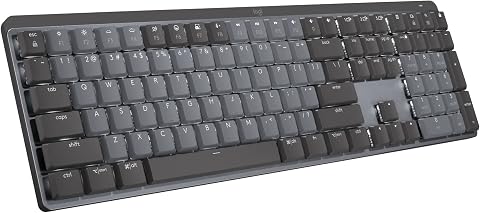
This full-size wireless mechanical keyboard features low-profile Tactile Quiet switches and smart backlighting that adjusts to your surroundings. It connects to up to three devices, recharges via USB-C, and supports a range of operating systems.
Pros:
- Quiet tactile switches provide typing feedback with less noise
- Smart backlighting adjusts to changing lighting conditions
- Can pair with up to three devices
- Rechargeable battery offers up to 15 days with backlighting
Cons:
- Some customization features require Logi Options+ software
- Battery life varies with usage and computing conditions
Best for: typists seeking a wireless mechanical keyboard
Not ideal for: buyers who need an unverified layout or switch feel
Bottom line: Verify the exact layout, connection support, and switch characteristics before choosing this keyboard.
Ergonomic mouse
A mouse is one of the most frequently handled parts of a desk setup, so shape and control deserve careful attention. The Logitech MX Master 4 Ergonomic Wireless Mouse with Haptics – Graphite is the named pick. Its name points to an ergonomic wireless mouse with haptics, but it does not establish fit for your hand or compatibility with your devices. Comfort is personal, so consider the shape in relation to your grip and daily use.
A common buying mistake is assuming that “ergonomic” guarantees a comfortable fit. Hand size, grip style, and whether you use a mouse with either hand can affect what feels natural. Check the product’s dimensions and controls, and look for a return option if you cannot try it first. Confirm its supported connection methods and operating system compatibility, especially if you switch between devices. Check the details that affect your hand as well as your computer.
Think about the surfaces where you’ll use it, the space available for movement, and whether the listed controls match your habits. The product name mentions haptics, so review the manufacturer’s description to understand how that feature works and whether it can be adjusted. Also confirm charging or battery details from the current listing. The right mouse should feel manageable over your usual work session, not merely sound appealing on paper. Fit your grip and routine.
What to look for:
- Compare mouse dimensions with your hand size
- Check shape against your grip and handedness
- Confirm wireless methods and device support
- Review haptics and control details
- Check power requirements and available movement space
Logitech MX Master 4 Ergonomic Wireless Mouse with Haptics – Graphite

The Logitech MX Master 4 is an ergonomic wireless mouse featuring customizable haptic feedback, a dynamic Actions Ring for quick tool access, and a MagSpeed scroll wheel for precise, fast scrolling. It offers up to 70 days of battery life, advanced connectivity options, and sustainable materials, making it ideal for productivity and comfort.
Pros:
- Customizable haptic feedback enhances user interaction
- Fast and precise MagSpeed scroll wheel
- Long battery life with quick charging capability
- Ergonomic design reduces hand stress
Cons:
- Requires Logi Options+ app for advanced customization
- Charging cable not included
Best for: users whose hand and grip suit its shape
Not ideal for: anyone needing a specific fit without checking dimensions
Bottom line: Check the shape, controls, and compatibility against your hand and everyday devices.
Ultrawide monitor
A monitor arm can help position a display while freeing space around its stand, but the right fit depends on both the screen and desk. The pick is listed as “Ultrawide Monitor Arm – Fits 17‑49 in, Heavy-Duty Flat/Curved Monitor.” Its name gives a size range and mentions flat and curved displays, yet that alone does not confirm that your monitor’s weight, mounting pattern, or desk will work with it. Verify the exact fit.
Do not rely on screen size as the only compatibility check. Find your monitor’s weight without its stand, its VESA mounting pattern, and any manufacturer requirements. Compare each with the arm’s current specifications. A very wide screen can also affect balance and reach, so check that the arm supports your display’s dimensions and intended position. Weight and mounting pattern count.
Check your desk thickness, edge shape, and available clearance for the clamp or other mounting hardware. Plan the monitor’s full range of movement and make sure it will not collide with a wall, shelf, or another display. For a curved monitor, confirm the arm’s stated support for your exact model rather than inferring it from the general product title. Confirm assembly needs and cable routing details too. Measure the desk and screen before ordering.
What to look for:
- Match monitor weight to the arm’s stated capacity
- Confirm VESA pattern and mounting hardware
- Check desk thickness and clamp clearance
- Verify support for your exact screen dimensions and curve
- Plan movement, wall clearance, and cable routing
Ultrawide Monitor Arm – Fits 17‑49 in, Heavy‑Duty Flat/Curved Monitor
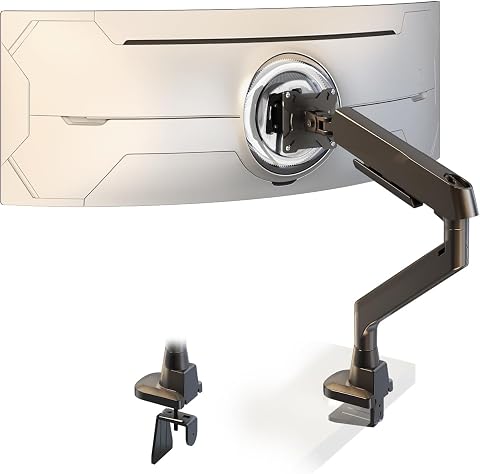
The STANDOPIA ultrawide monitor arm supports flat and curved screens from 17 to 49 inches and up to 35.2 lb with a high‑quality gas spring that eliminates sag. It offers full motion—including tilt, swivel, and 360° rotation—and integrated cable management for a clean, ergonomic workspace.
Pros:
- Supports a wide range of monitor sizes (17‑49 in) and weights up to 35.2 lb.
- Full motion adjustment with smooth tilt, swivel, and 360° rotation.
- Integrated cable management keeps the workspace tidy.
- Heavy‑duty clamp fits desks 10–50 mm thick for secure installation.
Cons:
- May be heavy to adjust frequently due to robust construction.
Best for: monitor owners whose screen and desk meet its specs
Not ideal for: setups with unverified weight or mounting compatibility
Bottom line: Check the monitor’s weight, mounting pattern, and desk before relying on the listed size range.
Monitor light bar
The listed pick for this slot is “LED Pool Volleyball Net Set with Two Light-Up Balls.” The product name describes a pool volleyball net set and two light-up balls, so it does not identify a monitor light bar. That mismatch matters because a monitor light bar is intended to fit and illuminate a desk display, while the named product is described for a different activity. Check the product category carefully before treating it as desk lighting.
A common shopping mistake is assuming the heading and listing describe the same item. Read the product title, photos, and current specifications together; if they describe a pool game, do not count on them to provide monitor lighting. For a proper light bar, check how it attaches to your monitor, whether it suits the screen’s top edge and thickness, and how it is powered and controlled. Look for monitor-specific details.
Also consider whether the light can be positioned without obstructing the display or webcam, and whether its controls are practical from your seat. A listing should make these basics clear. Since this pick’s name does not indicate those details, there is no reliable basis here to assess its desk fit. Confirm the intended product before purchase and select a monitor light bar whose listing clearly describes that use. Verify intended use first.
What to look for:
- Confirm the listing is for a monitor light bar
- Check attachment fit for your monitor’s top edge
- Verify power source and controls
- Ensure it will not obstruct the screen or webcam
- Review current product photos and specifications
LED Pool Volleyball Net Set with Two Light-Up Balls

This pool volleyball set includes an adjustable net, two poles, water-filled bases, two LED volleyballs, a pump, and a remote. The net adjusts from 15 to 25 feet, while the remote offers 17 colors, seven flashing modes, speed settings, and timers.
Pros:
- Adjustable net fits different pool sizes
- Multiple colors and flashing modes
- Includes two light-up volleyballs
- Tool-free setup
Cons:
- Requires filling the bases with water
- Remote and lighting features may require batteries
Best for: pool volleyball use, based on its name
Not ideal for: anyone shopping for monitor lighting
Bottom line: The listed name describes a pool volleyball set, so verify the intended item before buying for desk lighting.
Desktop microphone
A desktop microphone can serve a desk used for gaming, streaming, or podcasting, and this pick is named “USB Microphone for Gaming, Streaming, and Podcasting with RGB Lighting.” The title identifies a USB microphone with RGB lighting and those stated uses, but it does not establish sound quality, pickup pattern, included stand, or software compatibility. Check the actual specifications for your recording needs.
A common mistake is assuming that a USB connection guarantees compatibility with every computer, console, or recording app. Confirm the supported devices and operating systems, then check whether your intended software recognizes the microphone. Consider where it will sit and whether the included mounting setup, if any, fits your desk. Look for details about pickup pattern and controls so you can judge whether it suits solo voice, calls, or a shared room. Match it to your recording space.
RGB lighting is part of the product name, but lighting alone does not tell you how it is powered or controlled. Check those details along with mute controls, headphone monitoring, and any included accessories if you need them. Think about keyboard noise, distance from your mouth, and available desk space. Choose based on the recording workflow and connection support you can confirm in the listing. Prioritize the audio workflow.
What to look for:
- Confirm USB compatibility with your device and apps
- Review pickup pattern and control details
- Check stand or mounting accessories included
- Verify mute, monitoring, and lighting controls
- Consider placement, keyboard noise, and desk space
USB Microphone for Gaming, Streaming, and Podcasting with RGB Lighting and One-T

This plug-and-play USB desktop microphone features a hyper-cardioid pickup pattern, noise reduction, and zero-latency monitoring for gaming, streaming, and recording. It has seven RGB lighting modes, a touch mute control with status indicator, and a rotary gain knob.
Pros:
- Plug-and-play setup with no drivers required
- One-touch mute with a visible status indicator
- Zero-latency monitoring and adjustable gain
- Includes pop filter, stand, cable, and OTG adapter
Cons:
- Not compatible with Xbox consoles
- Android phone use requires a Type-C adapter
Best for: gamers and creators verifying USB support
Not ideal for: buyers who need confirmed audio specs from the name alone
Bottom line: Confirm device support, pickup details, and included mounting gear before choosing this microphone.
Buy in an order that fixes the most disruptive desk problem first. Start with connectivity if you cannot connect your essential devices, then address keyboard or mouse comfort, monitor positioning, and audio needs. For each item, verify compatibility and physical fit before adding it to your setup. The monitor light bar entry needs particular care because its listed name describes a pool volleyball set. Spend attention where fit is uncertain.
You do not need to finish a desk all at once. Make a short list of what your current setup lacks, measure the relevant spaces, and check product details against your devices before deciding. A few deliberate choices can make a workspace feel more suited to your routines. Keep the checklist handy as you compare options, and build at your own pace. Your desk should work for you.
Halloween Picks

DomKom 6-Foot Halloween Inflatable Ghosts Roasting Marshmallows

HOPOCO Halloween Pumpkin Fog Machine with 12 LED Colors & Remote Control

Max Fun 10-Foot Halloween Dragon and Pumpkin Inflatable Archway with LED Lights
As an affiliate, we earn on qualifying purchases.