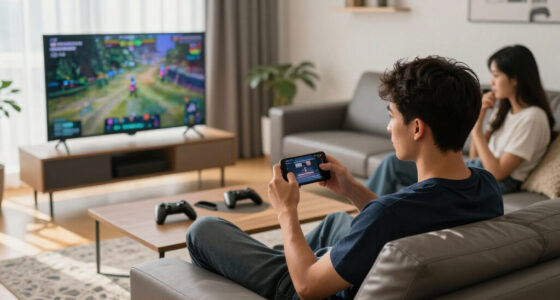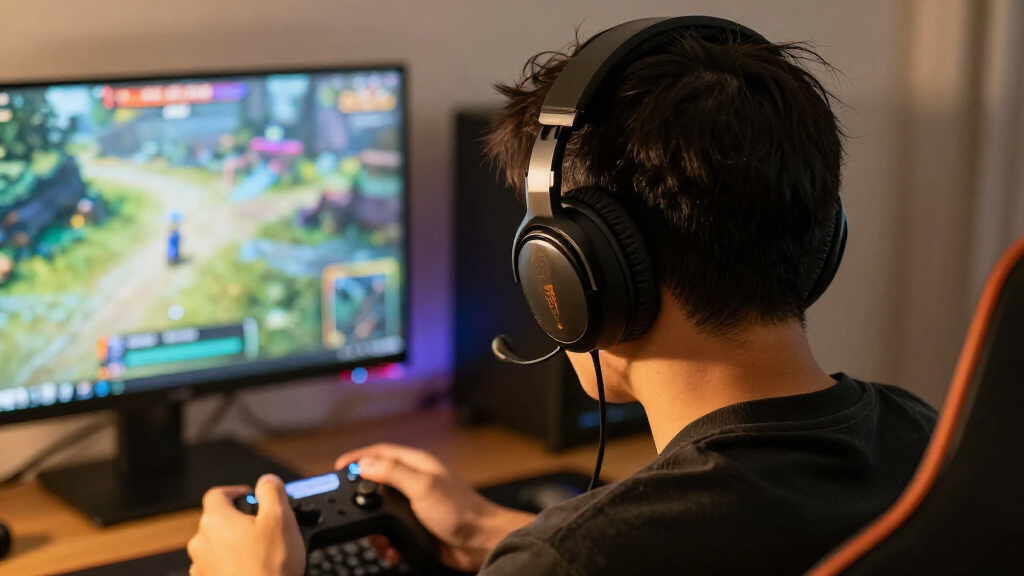

Set up a wireless gaming headset so you can hear game audio and use its microphone on a PC or console. This guide is for beginners who can access their device’s audio settings; setup usually takes 15–30 minutes. Connection steps vary by headset model, so check its manual for the supported connection type and device-specific instructions.

Get the latest gadgets delivered free with Prime
- Fast, free delivery on millions of items
- Prime Video, Amazon Music and more included
- Member-only deals all year

Turtle Beach Stealth 600 Wireless Gaming Headset
- ✔ Connectivity: 2.4 GHz wireless and Bluetooth
- ✔ Compatibility: Xbox Series X|S and Xbox One, PS5 and PS4, Windows PC, Steam Deck, mobile
- ✔ Drivers: 50 mm Nanoclear

HyperX Cloud III S Wireless Gaming Headset
- ✔ Connectivity: 2.4 GHz wireless, Bluetooth and Instant Pair with select OMEN laptops
- ✔ Compatibility: PC, PS5, PS4, Nintendo Switch, Mac and mobile; not Xbox
- ✔ Battery life: Up to 120 hours on 2.4 GHz; up to 200 hours on Bluetooth

Logitech G733 LIGHTSPEED Wireless Gaming Headset, Black
- ✔ Wireless technology: 2.4 GHz LIGHTSPEED
- ✔ Wireless range: Up to 20 meters
- ✔ Battery life: Up to 29 hours
Difficulty: Beginner | Time: 15-30 minutes
What You’ll Need
Tools & Materials:
- Wireless gaming headset and its charging cable
- Included USB wireless transmitter or receiver, if the headset uses one
- PC, console, or other compatible device
- Headset manual or manufacturer’s setup instructions
Knowledge:
- Basic ability to open audio settings on your device
- Ability to identify the headset’s power, pairing, volume, and mute controls
Charge the headset before setup. Check the manual or product specifications to confirm that your headset works with your device and whether it connects by USB transmitter, Bluetooth, or a dedicated console wireless connection. Some headsets support different features on different devices.
Turtle Beach Stealth 600 Wireless Gaming Headset
The Stealth 600 earns our top spot for connection flexibility. It pairs low-latency 2.4 GHz wireless with Bluetooth and includes a QuickSwitch button, a useful combination for players who want to move between a console or PC session and a mobile device. Its listed compatibility is the broadest in this roundup: Xbox Series X|S and Xbox One, PS5 and PS4, Windows PC, Steam Deck and mobile devices. By comparison, the G733 covers PC, PlayStation and Switch but does not list Xbox, while the Cloud III S explicitly excludes it.Comfort details are also practical rather than decorative. The memory foam cushions include glasses relief, which may make long sessions more comfortable for people who wear frames. Its flip-to-mute microphone keeps muting simple, and AI noise reduction is intended to help reduce background noise. The 50 mm Nanoclear drivers and four EQ presets, with options for custom EQ through the Swarm II app, give players room to adjust sound. That app requirement is a tradeoff: the G733 also depends on desktop software for some features, but buyers who want advanced Stealth 600 microphone and EQ customization need to account for the app.Battery life is another strong point, with up to 80 hours and quick charge stated. That is substantial, though still below the Cloud III S’s claims of up to 120 hours over 2.4 GHz and 200 hours over Bluetooth. The Stealth 600 is the more balanced recommendation for mixed platforms and devices; choose HyperX instead if maximum time between charges matters more and Xbox is not part of your setup. One detail in the provided specs is inconsistent: Bluetooth is listed as version 5.2 in one place and 5.4 in another. We would choose this headset for the connection options and controls, not for a specific Bluetooth version.
Pros:
- Combines low-latency 2.4 GHz wireless and Bluetooth with a QuickSwitch button.
- Lists compatibility with Xbox, PlayStation, PC, Steam Deck and mobile devices.
- Offers up to 80 hours of stated battery life and quick charge.
- Includes glasses relief in the memory foam ear cushions and a flip-to-mute microphone.
Cons:
- Advanced EQ and microphone customization require the Swarm II app.
- The supplied product details disagree on whether Bluetooth is version 5.2 or 5.4.
- Its stated battery life is shorter than the Cloud III S’s.
Best for: Players who want one headset for Xbox, PlayStation, PC and mobile, especially those who value Bluetooth switching and glasses-friendly cushions.
Not ideal for: Buyers who want the longest stated battery life or prefer to customize EQ and microphone behavior without using a companion app.
Bottom line: We recommend the Stealth 600 as the most adaptable all-rounder here, particularly for players who switch between platforms and devices.
“We recommend the Stealth 600 as the most adaptable all-rounder here, particularly for players who switch between platforms and devices.”
HyperX Cloud III S Wireless Gaming Headset
If charging less often is our main priority, the Cloud III S has the strongest battery claim in this group: up to 120 hours over 2.4 GHz or up to 200 hours over Bluetooth. That headroom makes it a compelling alternative to the Stealth 600, which lists up to 80 hours, and the G733 at up to 29 hours. Battery figures are stated maximums, but the gap still helps distinguish the HyperX for players who prefer fewer interruptions between sessions.Its connection mix includes 2.4 GHz and Bluetooth, plus Instant Pair on select OMEN laptops. The detachable 10 mm boom microphone can be removed when it is not needed, and its LED mute indicator helps make mic status visible. A padded headband and memory foam cushions wrapped in leatherette are designed for a plush fit. The 53 mm angled drivers and aluminum frame round out a feature set that makes this headset a strong fit for a PC- or PlayStation-centered setup, although the listed weight of 356 g is higher than the G733’s 278 g. That difference matters to buyers who put light weight above battery endurance.The major compatibility boundary is clear: Cloud III S is not compatible with Xbox. That makes the Stealth 600 the better choice for anyone using an Xbox console, even though HyperX has the longer stated runtime. Its detachable mic also gives it a different kind of flexibility from the Stealth’s flip-to-mute mic and the G733’s Blue VO!CE filters. Magnetic earcup plates are sold separately and are available only in select regions, so they should not be treated as a standard part of the setup. Choose HyperX for battery life and a removable boom; skip it if Xbox support or a lighter listed weight is essential.
Pros:
- States up to 120 hours of battery life on 2.4 GHz and up to 200 hours on Bluetooth.
- Supports 2.4 GHz, Bluetooth and Instant Pair with select OMEN laptops.
- Detachable boom microphone has an LED mute indicator.
- Uses memory foam cushions, a padded headband and an aluminum frame.
Cons:
- Not compatible with Xbox.
- At 356 g, it is heavier than the listed 278 g Logitech G733.
- Magnetic earcup plates are sold separately and available only in select regions.
Best for: PC, PlayStation, Switch, Mac or mobile players who want very long stated battery life and a detachable boom microphone.
Not ideal for: Xbox players, or anyone who prioritizes a lighter listed headset over extended battery life.
Bottom line: The Cloud III S is our battery-life pick for non-Xbox setups, provided its greater listed weight is acceptable.
“The Cloud III S is our battery-life pick for non-Xbox setups, provided its greater listed weight is acceptable.”
Logitech G733 LIGHTSPEED Wireless Gaming Headset, Black
The G733 is the lightest listed option at 278 g, making it the most natural fit for buyers who want to keep headset weight down. Its reversible suspension headband and dual-layer memory foam earcups give it a comfort-focused profile, while customizable dual-zone LIGHTSYNC RGB adds a visible style feature missing from the other two descriptions. If a lightweight feel and personalization matter more than Bluetooth or maximum endurance, this Logitech model has a distinct place in the lineup.Its 2.4 GHz LIGHTSPEED connection is specified with a range of up to 20 meters, and battery life is stated at up to 29 hours. That is enough to distinguish it from a wired headset, but it falls well short of the Stealth 600’s up to 80 hours and the Cloud III S’s up to 120 hours on 2.4 GHz. The 40 mm PRO-G drivers and Blue VO!CE microphone filters provide audio and mic customization options, though some features rely on G HUB software. Buyers who want app-based adjustments may see that as useful; those seeking a more self-contained setup may prefer the Stealth 600’s onboard QuickSwitch and secondary controls.Compatibility is listed for PC, PS5, PS4 and Nintendo Switch. The supplied details specifically note stereo play for PS4, so players should check that limitation against their expectations rather than assume every feature behaves identically across platforms. Compared with the Stealth 600, the G733 gives up Bluetooth, Xbox support and longer battery life. Compared with the Cloud III S, it trades the detachable boom and extreme runtime for a much lighter listed weight and RGB styling. We place it third overall because its strengths are more specialized, but for a PC or PlayStation buyer focused on fit and appearance, that specialization may be exactly the point.
Pros:
- At 278 g, it is the lightest headset in this comparison.
- Reversible suspension headband and dual-layer memory foam earcups emphasize comfort.
- LIGHTSPEED 2.4 GHz wireless lists a range of up to 20 meters.
- Includes dual-zone RGB lighting and Blue VO!CE microphone filters.
Cons:
- Up to 29 hours of stated battery life is below both competing models.
- Some audio and microphone customization relies on G HUB software.
- Listed compatibility excludes Xbox and Bluetooth connections.
Best for: PC, PlayStation or Switch players who prioritize a lightweight listed design, a suspension headband and customizable RGB lighting.
Not ideal for: Xbox or Bluetooth users, buyers who need the longest battery life, or anyone who wants all customization without G HUB software.
Bottom line: The G733 is the specialized choice for a lighter, customizable headset, but the Stealth 600 and Cloud III S offer more connection or battery flexibility.
“The G733 is the specialized choice for a lighter, customizable headset, but the Stealth 600 and Cloud III S offer more connection or battery flexibility.”
As an Amazon Associate we earn from qualifying purchases.
Before You Start
Keep the headset close to the device while pairing, and turn off other nearby devices that might connect to it. If your headset includes a USB transmitter, use that for gaming when the manual recommends it; Bluetooth support and performance vary, and some devices do not support Bluetooth audio headsets. Do not force a USB plug into a port. If you are using a console, check its headset compatibility guidance before changing settings.
Step-by-Step Instructions
Step 1: Charge and inspect the headset
Connect the headset to its charging cable and charge it according to the manual. Check that the power, volume, mute, and pairing controls are accessible, and confirm that the microphone is attached or lowered into its operating position. Remove any protective film from the transmitter contacts if the instructions call for it.
Tip: A low battery can interrupt setup or cause audio dropouts. If the headset has a battery indicator, check it before pairing.
Check: The headset shows a charging or charged indicator, or the manual’s stated charging signal.
Step 2: Choose the correct connection method
Read the headset manual and select a connection method supported by both the headset and your device. For a USB wireless transmitter, plug it directly into a compatible USB port. For Bluetooth, open your device’s Bluetooth settings. If the headset has a console-specific mode or transmitter setting, select the mode named in its instructions.
Tip: Some headsets use Bluetooth for phones but a USB transmitter for PCs or consoles. Choose the mode intended for your gaming device.
Check: You have selected a connection method listed as compatible for your headset and device.
Step 3: Connect the transmitter or start pairing
If you are using a transmitter, insert it into the device’s USB port and wait for the device to recognize it. If you are pairing over Bluetooth, put the headset into pairing mode using the manual’s button sequence, then select the headset by name in your device’s Bluetooth menu. Confirm the pairing prompt if one appears.
Tip: Pairing mode often has a blinking light or spoken cue. Do not assume the headset is pairing just because it is powered on.
Check: The headset or transmitter shows a connected indicator, or your device lists the headset as connected.
Step 4: Select the headset for game audio
Open your PC or console’s sound or audio settings. Select the headset as the output device. If the device lists separate headset and transmitter entries, choose the entry the manual recommends for game audio. Start with a low volume, then play a game or system test sound and raise the level gradually.
Tip: A headset can be connected but not selected for sound. Check the output setting if audio still comes from speakers or a television.
Check: Game or test audio plays through both earcups, and the volume controls change the listening level.
Step 5: Set up the microphone
In the device’s audio, chat, or voice settings, select the headset microphone as the input device. Unmute the headset and move the microphone near the corner of your mouth without touching it. Use the device’s microphone test or a voice chat test to check the input level.
Tip: If the microphone is detachable, check that it is seated fully. A hardware mute switch can override the setting on your screen.
Check: The microphone test meter responds when you speak, or a voice chat partner can hear you clearly.
Step 6: Balance chat and game audio
Open your game’s audio or voice chat menu and set the chat output and input to the headset if those choices are available. Adjust game volume and chat volume separately, if supported. Keep both at a comfortable level so voices are clear without masking game sounds.
Tip: Some headsets have a physical game-and-chat balance dial. Start near the center, then adjust it during a voice chat.
Check: You can hear the game and chat clearly, and changing their controls affects the intended audio source.
Step 7: Test the connection during play
Launch a game or use a system sound test for several minutes. Walk around within the headset’s recommended range, then return near the device. Check for dropouts, delay, static, or microphone cutouts. If your headset has a companion app or firmware update process, follow the manufacturer’s instructions after confirming the headset works.
Tip: Keep the transmitter in a clear USB port when possible. Nearby wireless devices, obstacles, or a distant transmitter can affect connection quality.
Check: Audio remains steady during the test, and the microphone continues to pick up your voice.
Common Mistakes to Avoid
- Pairing by Bluetooth when the headset or gaming device requires a USB transmitter. — Check both devices’ compatibility information and use the connection method specified for gaming.
- Leaving the headset microphone muted or selecting a different microphone in system settings. — Check the headset’s mute control and select its microphone as the input before testing voice chat.
- Turning the volume up before confirming the selected output. — Select the headset first, then begin at a low volume and increase it gradually.
- Assuming a connected headset is automatically selected for game and chat audio. — Review output and input selections in both the device settings and the game’s voice settings.
Troubleshooting
Problem: The headset does not appear in the device’s Bluetooth menu.
Solution: Confirm Bluetooth is supported, put the headset into pairing mode, and check that it is not already connected to another device. Follow the manual’s pairing sequence, then scan again.
Problem: The headset connects, but sound still comes from the device speakers.
Solution: Open audio settings and select the headset or its transmitter as the output. Check the game’s own audio settings too, then disconnect and reconnect the headset if it remains unavailable.
Problem: Other people cannot hear the microphone.
Solution: Unmute the headset, confirm the microphone is attached and positioned correctly, and select it as the input in both system and game settings. Run the device’s microphone test.
Problem: Audio drops, crackles, or cuts out.
Solution: Charge the headset, move closer to the transmitter, and remove obstacles between the headset and device. Try another compatible USB port or disconnect nearby wireless devices. Re-pair according to the manual if the problem continues.
What Success Looks Like
The headset is selected for game audio, sound plays clearly through both earcups, and the microphone test responds to your voice. During a short gaming session, the connection stays stable and chat and game audio are at comfortable levels.
Next Steps
Disconnect or power off the headset when you finish, and recharge it if needed. Store the transmitter with the headset so it is available next time. If your device or headset receives an update, follow the manufacturer’s instructions and repeat the audio and microphone checks afterward.
Frequently Asked Questions
Can I use a wireless gaming headset with any console?
No. Compatibility depends on the headset, console, and connection method. Check the headset’s supported devices and the console maker’s compatibility guidance before setup.
Should I use Bluetooth or the USB transmitter?
Use the method recommended for your headset and gaming device. Many gaming headsets use a USB transmitter for console or PC audio, while Bluetooth may be intended for phones or other devices.
Why can I hear the game but not speak in chat?
The microphone may be muted or set to a different input. Select the headset microphone in both the system and game voice settings, then run a microphone test.
Can I connect the headset to two devices at once?
Only if the headset supports simultaneous connections or an advertised multi-device mode. Check the manual; otherwise, disconnect it from one device before pairing it with another.