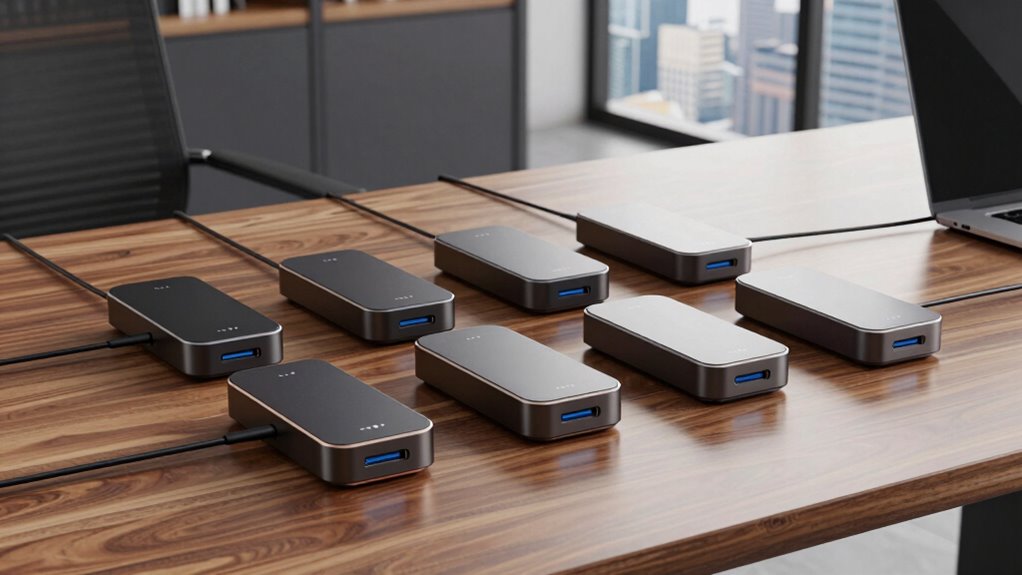

Choosing a USB-C docking station for a laptop starts with a practical question: how many displays and peripherals do you need at your desk, and what can your laptop actually support? My strongest all-around choice is the 14-in-1 USB-C Laptop Docking Station, with its broad port selection and Ethernet; the Anker Nano 8-in-1 is the sharper fit for Windows users seeking dual 4K at 60Hz; and the Anker 332 makes more sense when a compact hub is enough. Those picks serve very different setups, though. Display limits, operating system support, host-port requirements, and the fact that power adapters are not included can change which one fits.

Get the latest gadgets delivered free with Prime
- Fast, free delivery on millions of items
- Prime Video, Amazon Music and more included
- Member-only deals all year
I ranked these around how well each dock serves a laptop workflow, not by counting ports alone. The 14-in-1 takes the broadest-use position, while WAVLINK is aimed at Windows users with high-refresh displays and compatible graphics hardware. Anker’s PowerExpand offers a simpler dual-HDMI desk setup, and the Nano promises higher dual-display refresh rates in a smaller hub. I treat the Anker 332 as a hub rather than a full desk dock: it gives up extra screens and Ethernet for portability and a leaner set of connections.
Complete the kit


Key Takeaways
- Best broad desk expansion: The 14-in-1 combines three video outputs, Gigabit Ethernet, card readers, audio, and multiple USB ports, but its multi-screen modes have resolution limits.
- Best high-refresh Windows option: Anker Nano advertises dual 4K at 60Hz, though that depends on host support for DP 1.4 and DSC; macOS only mirrors displays.
- Best for demanding compatible displays: WAVLINK reaches 4K at 144Hz or 8K at 30Hz on one screen and includes 2.5GbE, but macOS is unsupported and DSC hardware is needed for advertised modes.
- Best simple dual-HDMI desk: Anker PowerExpand has useful everyday ports and dual 4K output at 30Hz, but it is limited to mirroring on macOS and does not support Linux.
- Best compact peripheral hub: Anker 332 handles one 4K display at 30Hz, USB data, and charging passthrough; it lacks Ethernet and is a poor match for multi-monitor desks.
| 14-in-1 USB C Laptop Docking Station with Dual Monitor HDMI, DisplayPort, Ethernet & SD Card Reader |  | Best Overall for Broad Desk Expansion | Total ports: 14 | Video outputs: 2x HDMI, 1x DisplayPort | Single-display maximum: 4K at 60Hz via HDMI 1 or DisplayPort | VIEW ON AMAZON | See Our Full Breakdown |
| WAVLINK 12-in-1 Laptop Docking Station with Triple Monitor Support |  | Best for High-Refresh Windows Displays | Display outputs: 2x DisplayPort, 1x HDMI | Single-display maximum: 4K at 144Hz or 8K at 30Hz | Dual-display maximum: Dual 4K at 60Hz with DP 1.4 and DSC 1.2 | VIEW ON AMAZON | See Our Full Breakdown |
| Anker Nano Laptop Docking Station, 8-in-1 USB-C Hub for Dual Monitors |  | Best Compact Dual-4K Hub | Ports: 8, including 2x HDMI, USB-C, 2x USB-A, PD input, SD/TF | Video output: Dual 4K at 60Hz with DP 1.4 and DSC 3:1 | Data transfer: Up to 10Gbps on USB-C and USB-A data ports | VIEW ON AMAZON | See Our Full Breakdown |
| Anker PowerExpand 8-in-1 USB-C Laptop Docking Station with Dual 4K HDMI |  | Best for a Straightforward Dual-HDMI Desk | Ports: 2x HDMI, 2x USB-A, USB-C PD input, Ethernet, SD/microSD | Single-display maximum: 4K at 60Hz | Dual-display maximum: 4K at 30Hz each | VIEW ON AMAZON | See Our Full Breakdown |
| Anker 332 USB-C Hub, 5-in-1 with 4K HDMI | 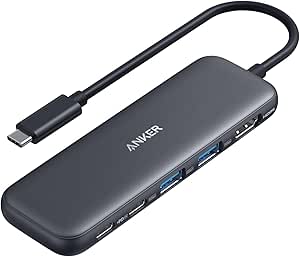 | Best Simple Hub for Everyday Carry | Ports: HDMI, USB-C data, 2x USB-A, USB-C PD-IN | Video output: 4K at 30Hz via HDMI | Data transfer: Up to 5Gbps | VIEW ON AMAZON | See Our Full Breakdown |
| usb c docking station for laptop | Laptop charging | Compatibility | Single-display maximum | Ports |
|---|---|---|---|---|
| 14-in-1 USB C Laptop Docking S | Up to 87W output; 100W input | Thunderbolt 3/4/5 or USB-C with video output; Mac external displays mirror | 4K at 60Hz via HDMI 1 or DisplayPort | — |
| WAVLINK 12-in-1 Laptop Docking | Up to 85W; 100W input | Windows only; host USB-C must support charging and video | 4K at 144Hz or 8K at 30Hz | — |
| Anker Nano Laptop Docking Stat | Up to 85W passthrough; 100W PD input | Windows 10/11, ChromeOS, USB4, Thunderbolt, full-function USB-C | — | 8, including 2x HDMI, USB-C, 2x USB-A, PD input, SD/TF |
| Anker PowerExpand 8-in-1 USB-C | Up to 85W passthrough | — | 4K at 60Hz | 2x HDMI, 2x USB-A, USB-C PD input, Ethernet, SD/microSD |
| Anker 332 USB-C Hub | Up to 85W passthrough | MacBook, Windows 10/11, ChromeOS with DP Alt Mode and Power Delivery | — | HDMI, USB-C data, 2x USB-A, USB-C PD-IN |
More Details on Our Top Picks
14-in-1 USB C Laptop Docking Station with Dual Monitor HDMI, DisplayPort, Ethernet & SD Card Reader
For a laptop that needs to become a fixed workstation, this 14-port dock covers more everyday connections than any other pick here. Two HDMI ports and DisplayPort give it the most video-output flexibility in the group, while Gigabit Ethernet, SD and microSD readers, audio, and a mix of USB-A and USB-C ports can keep common desk accessories attached. Compared with the Anker PowerExpand, it adds DisplayPort and more varied USB connections; compared with the compact Anker 332, it is far better suited to a permanent desk setup.
The display figures need a close read: a single screen can reach 4K at 60Hz, but dual-monitor operation is listed as 4K at 30Hz plus 1080p at 60Hz, and triple displays are listed at 1080p. Those modes may suit office multitasking, but they are not a promise of three high-resolution extended screens. MacBooks also only mirror external displays through this dock, a significant limitation beside the Windows-focused flexibility implied by its outputs.
Power passthrough accepts up to 100W and supplies up to 87W to the laptop, but the charging cable and adapter are not included. I rank it first for buyers who want one hub to manage a varied desk; I would choose WAVLINK for a compatible Windows system prioritizing high refresh rates, or the Nano for dual 4K at 60Hz when its DSC requirement is met.
Pros:- 14 ports cover display, USB, Ethernet, audio, and card-reader needs.
- Single-display 4K output reaches 60Hz through HDMI 1 or DisplayPort.
- Provides Gigabit Ethernet and 10Gbps USB 3.1 data ports.
- Up to 87W laptop charging from 100W power input.
Cons:- Multi-monitor modes reduce resolution or refresh rate; triple output is listed at 1080p.
- MacBooks mirror external displays instead of extending them.
- Power adapter and charging cable are not included.
Best for: Laptop owners building a desk setup with several peripherals, wired networking, card readers, and flexible display connections.
Not ideal for: Mac users who need separate extended external screens, or anyone who expects triple 4K output or a supplied charger.
- Total ports:14
- Video outputs:2x HDMI, 1x DisplayPort
- Single-display maximum:4K at 60Hz via HDMI 1 or DisplayPort
- Dual-display mode:4K at 30Hz plus 1080p at 60Hz (DP 1.4)
- Triple-display mode:1080p (DP 1.4)
- Laptop charging:Up to 87W output; 100W input
- Networking and readers:Gigabit Ethernet; SD and microSD
- Compatibility:Thunderbolt 3/4/5 or USB-C with video output; Mac external displays mirror
Our verdict“I’d choose this for the broadest everyday desk connectivity, provided its multi-monitor limits match the laptop and screens.”
WAVLINK 12-in-1 Laptop Docking Station with Triple Monitor Support
WAVLINK is the display specialist in this lineup. With two DisplayPort connections, HDMI, and support for a single screen up to 4K at 144Hz or 8K at 30Hz, it targets Windows laptop owners with capable graphics hardware and demanding monitors. Its dual-screen claim reaches 4K at 60Hz on both displays when the laptop supports DP 1.4 and DSC 1.2. That gives it an advantage over the 14-in-1 for compatible high-refresh or dual-4K use, while the latter offers broader stated OS compatibility and more USB connections.
For networking, WAVLINK includes 2.5 Gigabit Ethernet, which has more headroom than the Gigabit connection on the 14-in-1 when the rest of the network supports it. The dock also includes USB-A and USB-C data, card slots, audio, and up to 85W laptop charging. It is a more focused choice than the top-ranked dock: its strongest case rests on display and wired-network capability rather than having the widest mix of ports.
The main constraint is firm: this model is Windows only, and its headline display modes depend on DP 1.4 with DSC 1.2. A compatible 20V/5A charger is required but not supplied. I would put it ahead of the other docks for a compatible Windows setup centered on high-refresh screens, but choose the 14-in-1 for broader platform coverage or the Nano for a smaller dual-display hub.
Pros:- Single-display support up to 4K at 144Hz or 8K at 30Hz with compatible hardware.
- Dual 4K at 60Hz support when DP 1.4 and DSC 1.2 requirements are met.
- 2.5 Gigabit Ethernet offers more network capacity than the Gigabit docks here.
- Includes 2 DisplayPort outputs, HDMI, data ports, card slots, and audio.
Cons:- Not compatible with macOS.
- Maximum display modes require DP 1.4 and DSC 1.2 on the host.
- 20V/5A power adapter is required and not included.
Best for: Windows laptop users with DP 1.4 and DSC 1.2 who want high-refresh or dual 4K monitors and faster wired networking.
Not ideal for: Mac users, Linux users, or buyers whose laptop lacks the video capabilities required for the advertised resolutions.
- Display outputs:2x DisplayPort, 1x HDMI
- Single-display maximum:4K at 144Hz or 8K at 30Hz
- Dual-display maximum:Dual 4K at 60Hz with DP 1.4 and DSC 1.2
- Laptop charging:Up to 85W; 100W input
- Networking:2.5 Gigabit Ethernet
- Data and other ports:USB-A 10Gbps, USB-C 10Gbps, 2x USB 2.0, SD/TF, audio
- Compatibility:Windows only; host USB-C must support charging and video
- Power requirement:20V/5A charger required; not included
Our verdict“I’d choose WAVLINK for a DSC-capable Windows laptop and demanding monitors, while treating its OS and adapter requirements as deal breakers for some desks.”
Anker Nano Laptop Docking Station, 8-in-1 USB-C Hub for Dual Monitors
The Nano is the compact alternative for a desk that needs two displays without the footprint and port spread of the 14-in-1. Its standout claim is dual 4K at 60Hz, paired with 10Gbps USB-A and USB-C data ports and SD/TF 3.0 card slots. If the laptop provides DP 1.4 with DSC at the required compression ratio, it can outperform the Anker PowerExpand, which is limited to 4K at 30Hz on each of two displays. That makes the Nano the better fit for crisp, fluid extended desktop work on compatible Windows laptops.
Its 85W laptop passthrough reserves 15W for the hub from a 100W PD input. This is useful for a portable dock with several active connections, but the charger and cable needed for full passthrough are not included. The 3.84-ounce body is easier to carry than a full-featured desk dock, though the listed dimensions make it more of a small travel hub than a tiny adapter.
There are clear boundaries: macOS mirrors the external displays, Linux is unsupported, and the USB data ports do not provide charging or video output. The 14-in-1 adds Ethernet, audio, and more display connectors; the Nano is the more appealing pick when its dual-4K mode and lighter carry profile matter more than those extras.
Pros:- Dual 4K at 60Hz output with a compatible DP 1.4 and DSC host.
- 10Gbps data transfer on its USB-C and USB-A data ports.
- Up to 85W laptop charging passthrough from 100W input.
- Lightweight 3.84-ounce design with SD/TF 3.0 readers.
Cons:- MacOS supports mirrored external displays only; Linux is unsupported.
- Dual 4K at 60Hz depends on DP 1.4 and DSC support from the laptop.
- Charger and cable are not included; USB data ports do not charge devices.
Best for: Windows or ChromeOS laptop users who want a portable hub with two 4K displays, fast data ports, and card slots.
Not ideal for: Mac users needing extended dual displays, Linux users, or anyone who needs Ethernet, audio, or charging from the data ports.
- Ports:8, including 2x HDMI, USB-C, 2x USB-A, PD input, SD/TF
- Video output:Dual 4K at 60Hz with DP 1.4 and DSC 3:1
- Data transfer:Up to 10Gbps on USB-C and USB-A data ports
- Laptop charging:Up to 85W passthrough; 100W PD input
- Card reader:SD/TF 3.0, up to 104 MB/s
- Compatibility:Windows 10/11, ChromeOS, USB4, Thunderbolt, full-function USB-C
- OS limitation:macOS mirrors displays; Linux unsupported
- Weight:3.84 ounces
Our verdict“I’d pick the Nano for compatible Windows dual-4K work on a compact hub, but its host requirements and OS limits narrow the audience.”
Anker PowerExpand 8-in-1 USB-C Laptop Docking Station with Dual 4K HDMI
The PowerExpand is a straightforward way to connect two HDMI displays, wired Ethernet, USB-A accessories, and SD or microSD cards through one laptop connection. It supports 4K at 60Hz on a single display, while dual displays run at 4K at 30Hz each. That is a useful split for a desk where two screens matter more than high refresh rates. Compared with the Nano, it has Ethernet and a more conventional desk-focused selection, but gives up 10Gbps USB ports and dual 4K at 60Hz.
Its 85W charging passthrough can keep a laptop powered while the dock handles peripherals, provided the buyer supplies the required 100W PD wall charger and USB-C cable. The port mix is easier to understand than the 14-in-1’s larger collection, which may suit someone who knows they need two HDMI connections and basic desk accessories rather than extra DisplayPort and audio options.
Compatibility narrows the recommendation. The listed systems are Windows 10/11 and ChromeOS; macOS mirrors both external displays, and Linux is unsupported. I’d choose it over the 14-in-1 when two HDMI sockets and a familiar, smaller set of ports are enough. For dual 4K at 60Hz on a capable Windows laptop, the Nano is the stronger display pick; for broader connectivity, the 14-in-1 is more adaptable.
Pros:- Two HDMI outputs support dual 4K at 30Hz.
- Single-screen output reaches 4K at 60Hz.
- Adds Ethernet, two USB-A ports, and SD/microSD readers.
- Up to 85W passthrough charging with a suitable external charger.
Cons:- macOS mirrors both external displays; Linux is unsupported.
- Dual-screen output is limited to 4K at 30Hz per display.
- 100W PD wall charger and USB-C cable are not included.
Best for: Windows or ChromeOS users who want two HDMI screens, Ethernet, card readers, and common USB-A connections at a desk.
Not ideal for: Linux users, Mac users seeking extended external screens, and buyers who need dual 4K at 60Hz or high-speed USB data.
- Ports:2x HDMI, 2x USB-A, USB-C PD input, Ethernet, SD/microSD
- Single-display maximum:4K at 60Hz
- Dual-display maximum:4K at 30Hz each
- Laptop charging:Up to 85W passthrough
- Host connection support:USB-C, USB4, Thunderbolt, DP Alt Mode
- Operating systems:Windows 10/11 and ChromeOS; macOS mirrors; Linux unsupported
- Charger and cable:100W PD wall charger and USB-C cable required; not included
- Warranty:18 months
Our verdict“I’d choose PowerExpand for a simple dual-HDMI desk with Ethernet, as long as 30Hz dual-screen output and OS limits are acceptable.”
Anker 332 USB-C Hub, 5-in-1 with 4K HDMI
The Anker 332 is the smallest-scope choice here: it turns one laptop port into a 4K HDMI output, two USB-A ports, one USB-C data port, and a USB-C charging input. That makes it a sensible travel companion or basic home-office adapter when one external screen and a few peripherals are enough. Its 5Gbps data ports are useful for ordinary transfers, while the other four docks offer more ports or stronger display options for a permanent multi-screen setup.
The HDMI output tops out at 4K at 30Hz, so scrolling and cursor movement on a high-resolution monitor may feel less fluid than the 60Hz single-screen mode offered by the 14-in-1 and PowerExpand. It can pass through up to 85W of power, but the charger is not included. Unlike the larger docks, it has no Ethernet, card reader, or second display output, so buyers should count those omissions as part of the compact design.
This hub supports MacBook, Windows, and ChromeOS systems with DP Alt Mode and Power Delivery, but it does not support Linux. Its USB-C port is for data and the PD-IN connection is for charging; neither adds video output. I’d pick it over the PowerExpand when portability and a minimal connection set matter more than dual screens or Ethernet, and skip it if the goal is a full laptop docking station for a complex desk.
Pros:- Compact 5-in-1 hub covers HDMI, USB-A, USB-C data, and charging input.
- Supports a 4K external display.
- USB-A and USB-C data ports support up to 5Gbps transfers.
- Passes through up to 85W of laptop charging.
Cons:- HDMI is limited to 4K at 30Hz and supports just one external display.
- No Ethernet or card reader.
- Linux is unsupported and the charger is not included.
Best for: Laptop users who need a compact one-screen adapter with a few USB data ports and charging passthrough.
Not ideal for: Buyers building a multi-monitor workstation, Linux users, or anyone who needs Ethernet, card readers, or 60Hz 4K output.
- Ports:HDMI, USB-C data, 2x USB-A, USB-C PD-IN
- Video output:4K at 30Hz via HDMI
- Data transfer:Up to 5Gbps
- Laptop charging:Up to 85W passthrough
- Compatibility:MacBook, Windows 10/11, ChromeOS with DP Alt Mode and Power Delivery
- Linux support:Not compatible
- Warranty:18 months
- Charger:Not included
Our verdict“I’d choose the Anker 332 for portable single-screen use, but the PowerExpand or 14-in-1 is a better desk dock.”

How We Picked
I compared the five docks by the jobs laptop buyers commonly need a single USB-C connection to handle: external displays, everyday peripherals, wired networking, memory cards, and charging passthrough. A larger port count only helps when the ports match the workflow, so I separated full desk expansion from compact travel hubs and weighed the display modes alongside the number of outputs.
Host compatibility and display behavior shaped the ranking. A USB-C connector alone does not guarantee video or charging; the laptop port must support the required features. Some advertised resolutions also depend on DisplayPort version, DSC, operating system, and the number of active screens. I call out those conditions because they can determine whether a dock works as expected. I also considered how much laptop power reaches the computer, what the buyer must supply separately, and where each model’s restrictions—such as mirrored Mac displays or absent Linux support—make another pick a better fit.
| usb c docking station for laptop | Laptop charging | Compatibility |
|---|---|---|
| 14-in-1 USB C Laptop Docking S | Up to 87W output; 100W input | Thunderbolt 3/4/5 or USB-C with video output; Mac external displays mirror |
| WAVLINK 12-in-1 Laptop Docking | Up to 85W; 100W input | Windows only; host USB-C must support charging and video |
| Anker Nano Laptop Docking Stat | Up to 85W passthrough; 100W PD input | Windows 10/11, ChromeOS, USB4, Thunderbolt, full-function USB-C |
| Anker PowerExpand 8-in-1 USB-C | Up to 85W passthrough | — |
| Anker 332 USB-C Hub | Up to 85W passthrough | MacBook, Windows 10/11, ChromeOS with DP Alt Mode and Power Delivery |
Factors to Consider When Choosing Usb C Docking Station For Laptops
I’d start with your laptop, monitor plan, and daily peripherals, then match the dock to those needs. The same USB-C plug can support very different functions depending on the host port, so check the laptop’s specifications before choosing.Check the laptop’s USB-C capabilities
USB-C describes the connector shape; it does not by itself promise video output, charging, or high transfer speeds. For the Anker 332 and PowerExpand, look for DisplayPort Alt Mode support, and check the host’s power delivery behavior if charging through the dock matters. WAVLINK and the Nano also depend on specific host display features for their highest resolutions. A Thunderbolt or USB4 label may help, but confirm the exact laptop and operating-system support rather than relying on the connector alone.
Match resolution and refresh rate to your screens
A dock’s maximum single-screen mode can differ from its dual- or triple-screen modes. The 14-in-1 reaches 4K at 60Hz on one display but lists lower or mixed modes for multiple screens. PowerExpand supports dual 4K at 30Hz, while the Nano advertises dual 4K at 60Hz with DP 1.4 and DSC. WAVLINK reaches high refresh rates in single-display use and dual 4K at 60Hz under its hardware requirements. Check your laptop’s GPU, display outputs, resolution, and desired refresh rate together.
Think through operating system limits
Operating system support can be the deciding factor. WAVLINK is Windows only; the Anker 332 lists Mac, Windows, and ChromeOS but not Linux; PowerExpand lists Windows and ChromeOS and does not support Linux. The 14-in-1 and Nano describe broader host compatibility, but both note that Mac external displays mirror rather than extend. If you need two independent displays on a Mac, verify the dock’s exact behavior with your model before buying.
Choose ports around your work
For a crowded desk, prioritize the connections you use every day. The 14-in-1 adds DisplayPort, HDMI, multiple USB-A and USB-C ports, Gigabit Ethernet, card readers, and audio. WAVLINK trades a broader platform fit for 2.5GbE and display-focused capability. PowerExpand offers a simpler mix with two HDMI ports, Ethernet, USB-A, and card readers. Nano has fast data ports and card slots, while Anker 332 keeps the basics and omits networking and memory-card support.
Account for charging and the supplied accessories
Charging figures describe passthrough capacity, not necessarily what every laptop draws at every moment. The 14-in-1 supplies up to 87W from a 100W input; the other larger hubs list up to 85W. The Anker 332 also supports up to 85W. These docks require an appropriate separate power source for passthrough, and the supplied details say chargers are not included. Check the laptop’s normal power needs and whether you already own a compatible charger and cable.
Frequently Asked Questions
Will any USB-C docking station work with my laptop?
No. The laptop’s USB-C port must support the functions you expect, such as video output, data, and charging. Some models require DisplayPort Alt Mode, and the highest display modes on the Nano and WAVLINK require specific DisplayPort and DSC support. I’d check the laptop maker’s port specifications and the dock’s requirements before choosing.
Which dock is best for two 4K monitors at 60Hz?
The Anker Nano advertises dual 4K at 60Hz when the laptop supports DP 1.4 with DSC 3:1. WAVLINK also supports dual 4K at 60Hz with DP 1.4 and DSC 1.2 hardware, but it is Windows only. The 14-in-1 lists a lower mixed-resolution dual-display mode, and PowerExpand is limited to 4K at 30Hz per display. Confirm host support and OS behavior before relying on those modes.
Can I extend two external monitors from a Mac with these docks?
The supplied information says the 14-in-1, Nano, and PowerExpand mirror external displays on macOS rather than providing separate extended screens. WAVLINK is listed as incompatible with macOS. The Anker 332 supports Mac systems, but it provides one HDMI output. If extended dual monitors are essential, check whether your specific Mac supports that configuration through the proposed dock.
Do these docking stations include a charger?
The product details provided do not include the charging adapter for these models. The 14-in-1 also lists its charging cable as not included; the Nano requires a 100W PD input for full 85W passthrough, and WAVLINK requires a 20V/5A charger. PowerExpand calls for a 100W PD wall charger and USB-C cable. Check what you already own and the dock’s input requirements.
Should I get a full dock or a compact USB-C hub?
I’d choose a full dock when the laptop stays at a desk and needs several displays, Ethernet, card readers, audio, and many attached peripherals; the 14-in-1 has the broadest mix. The Anker 332 suits travel or a simple setup with one screen and a few USB devices. Nano sits between those roles, offering more capable dual-display output in a compact hub, subject to its host and OS requirements.
Conclusion
For the widest mix of desk connections, I’d start with the 14-in-1 USB-C Laptop Docking Station, after checking its multi-screen modes and the laptop’s USB-C capabilities. Choose WAVLINK if you use Windows, have DP 1.4 with DSC, and want high-refresh display support or 2.5GbE. For compatible Windows dual-4K work in a portable hub, the Anker Nano is the more focused choice. Pick Anker PowerExpand for a simpler dual-HDMI setup with Ethernet, or the Anker 332 when one screen and everyday USB connections are all you need. In each case, verify operating-system behavior and budget for the separate power adapter or cable requirements.
Fall Picks
fall essentials
As an affiliate, we earn on qualifying purchases.